The BriskGen Journal
123apps Watermark Remover Review: A Real 720p Export Test
We tested 123apps on an original eight-second video. See the actual selection, free 720p export, matched frames, visible artifacts, and practical limits.
123apps removed the text mark in our sample and exported a 720p MP4 without a sign-in or payment prompt. It left a visible smoothed patch. That makes it worth trying for a small, unimportant corner of your own footage. It does not make it a dependable way to recover detailed imagery behind a logo.
The useful distinction is concealing a mark versus restoring what was behind it. In our eight-second clip, the first task worked; the second did not. The walkthrough below shows how to select the region, download the free export and decide whether its visible patch is acceptable.
The sample: a mark, a grid, and a moving block
We created an eight-second video specifically for this review. It contains a teal grid, an orange moving block, a visible clock, and an orange rectangle reading BRISKGEN TEST near the lower-right corner. The grid makes disrupted detail easy to see; the moving block shows what happens when another element passes through the selected area.
The input was an original 1280 × 720, 24 fps MP4 with a test audio track. You can play the input clip and the downloaded 720p output side by side. Watch once for the text mark and again for the moving block that crosses the same area.
Before opening the editor, decide what may be sacrificed. If the mark sits over an unimportant corner, a small smoothed area may be usable. If it covers a face, product label or detail the audience must see, ask for a clean master first. Our test uses one fixed mark, so it does not answer how a moving logo would be handled.
Select the area, then apply the edit
We opened Remove Logo from Video, chose the MP4, and waited for the eight-second timeline and preview to appear. The editor opened directly in Remove logo mode. No account dialog interrupted the import.
We dragged a rectangle around the orange text mark, leaving a small margin. The preview changed inside that rectangle before we clicked Apply. After applying it, the editor returned to the Video controls and enabled Export.
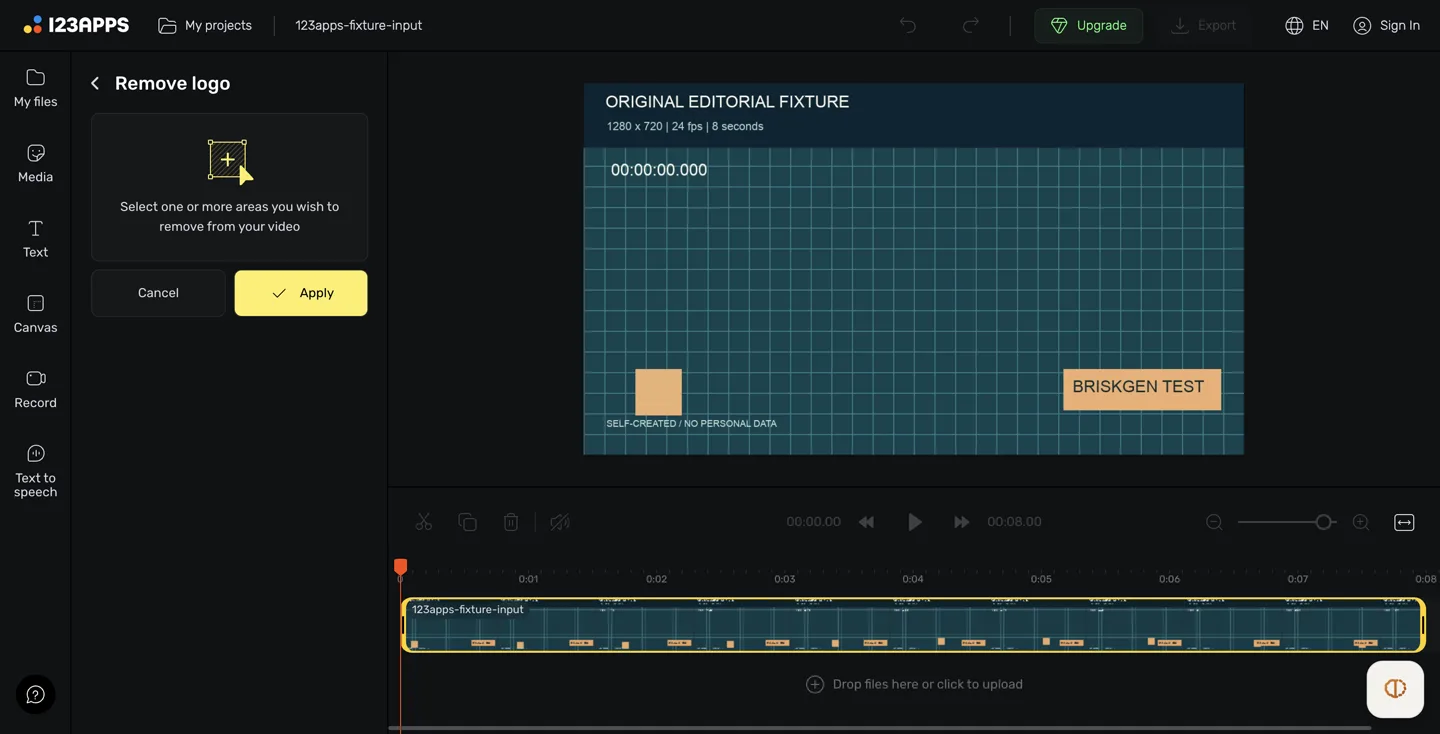
Our imported test fixture before selecting a region: identify the eight-second timeline, preview and Remove logo controls, then compare the selection below. 123apps tool.
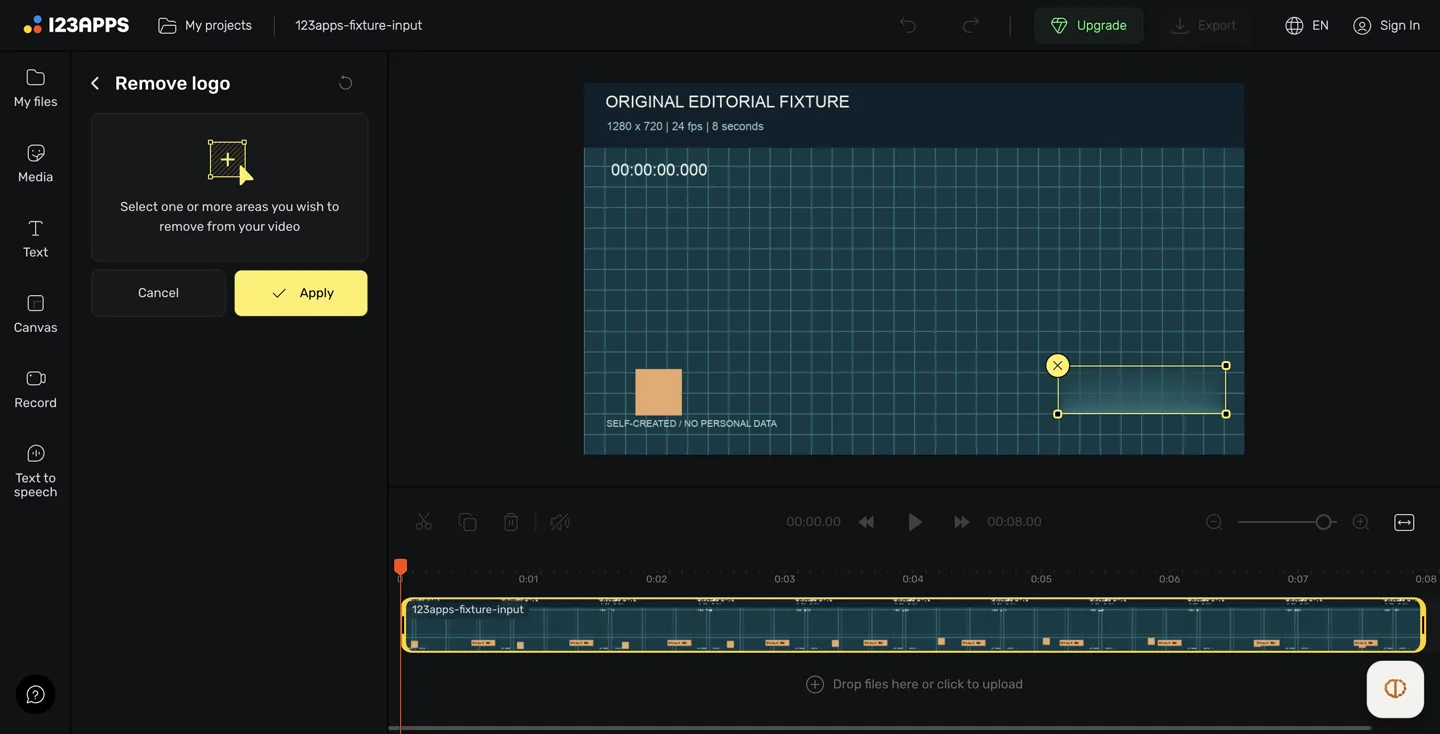
Keep the selection close to the mark. A large rectangle gives the tool more picture area to change, including detail you may want to preserve. Then check the entire clip: a good opening frame does not tell you what happens when a subject enters that region later.
The official Help instructions describe this as blurring selected regions and allow more than one area. Our test used one fixed region. We did not use Crop, so the full frame remained in the export.
What the free export actually offered
Clicking Export opened a panel with MP4 and three resolution choices: 480p, 720p, and 1080p. The 720p option was selected; 1080p carried a diamond badge. We kept MP4 and 720p rather than entering an upgrade flow.
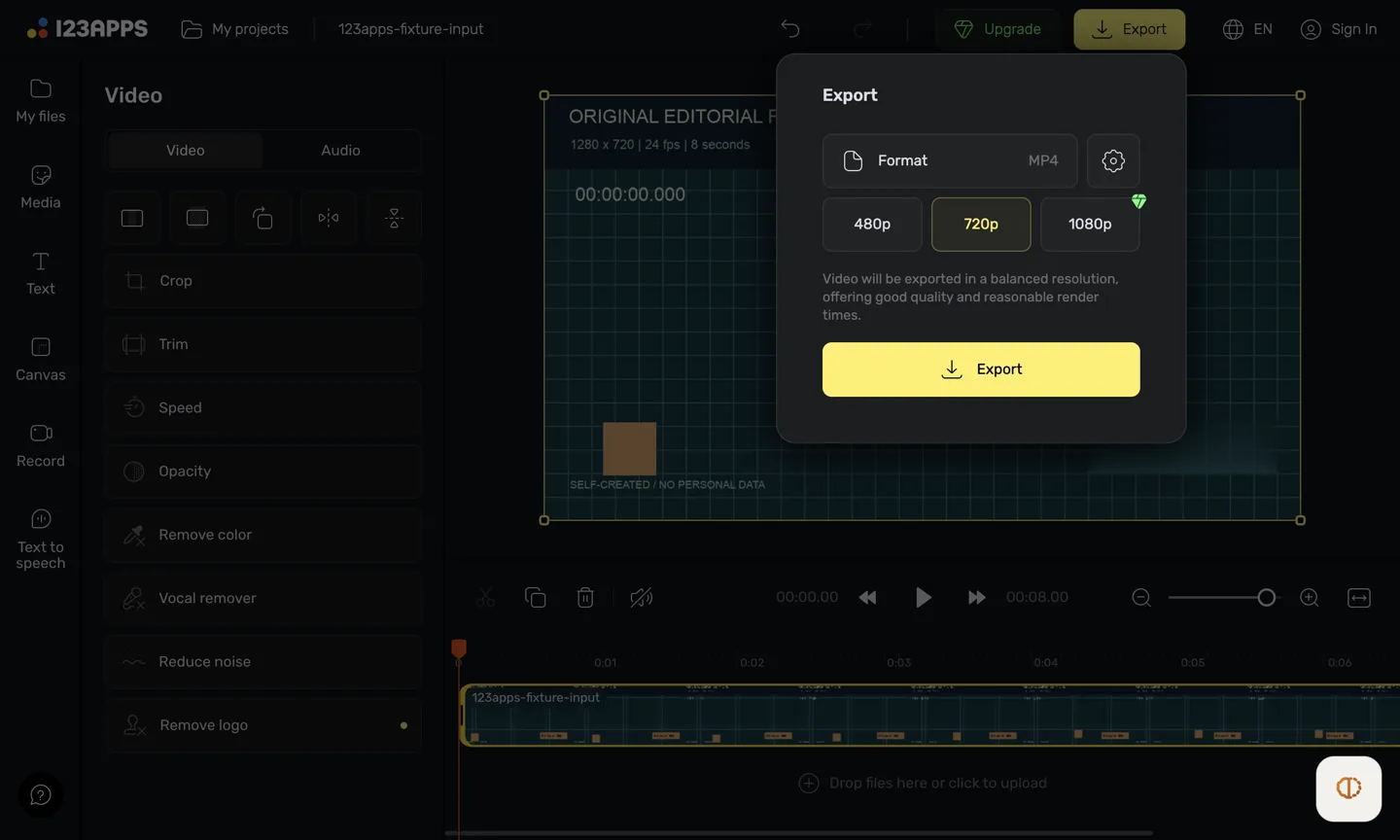
The second Export button started processing. When it finished, a Processing complete dialog reported 176 KB and supplied a Save link. We downloaded that file successfully. Here, Export starts rendering and Save downloads the completed result; they are different steps.
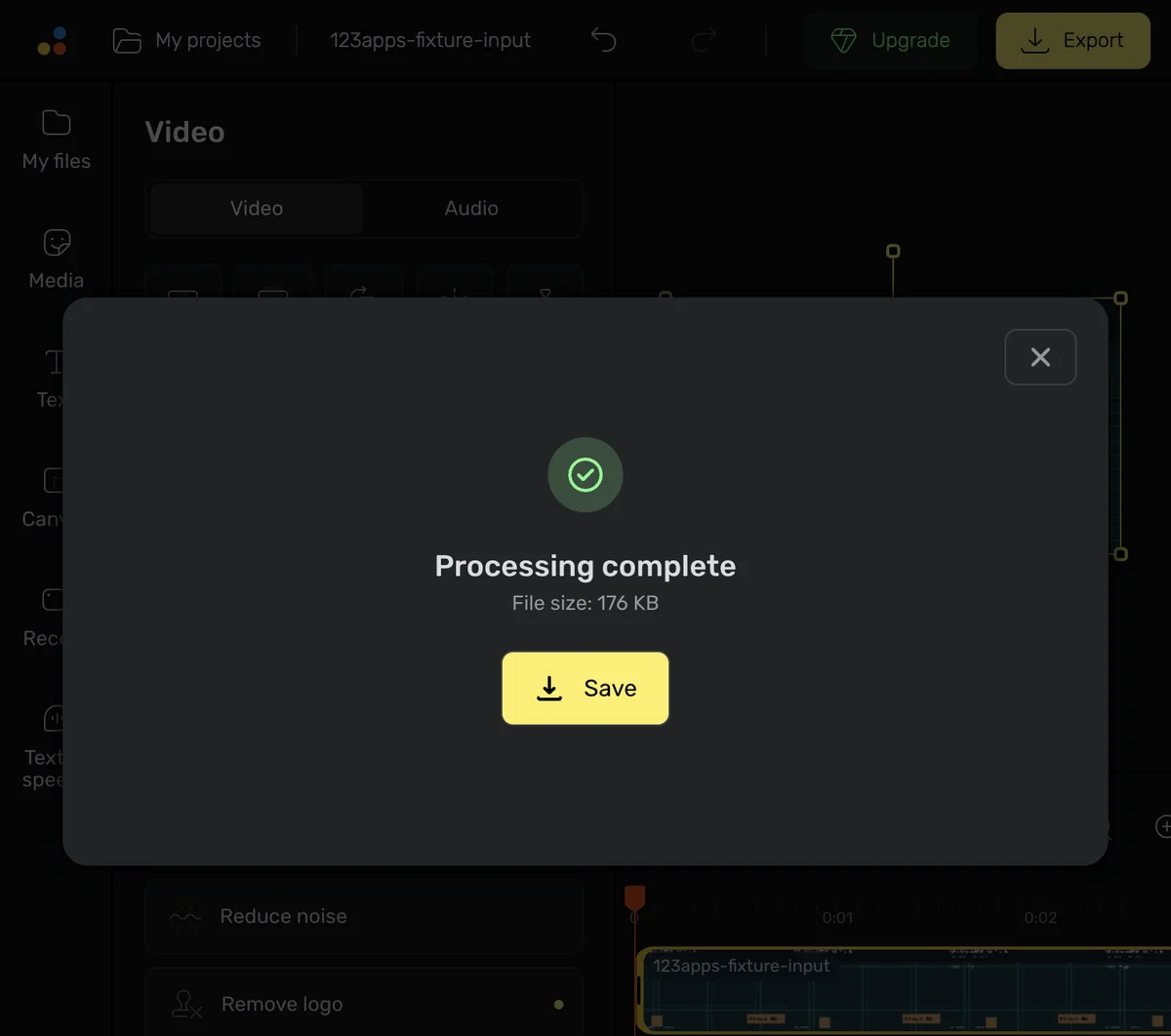
The same tested session retains the project name and timeline around Processing complete, 176 KB and Save. The downloaded file was 180,297 bytes; other formats, resolutions and paid allowances were not tested.
Our small 720p job required no payment. If your delivery needs 1080p or larger-file processing, check the current Premium terms, including currency, billing period and limits for the video tools. The visible patch is a separate decision: a higher-resolution export does not establish a better-looking repair. We did not test paid exports.
At two seconds: the words disappeared, the grid did not return
In the matched frames below, the input still shows BRISKGEN TEST. In the exported frame, that text is no longer visible. The surrounding composition stays in place, but the selected region becomes a smooth teal patch with stretched-looking grid lines near its edges.
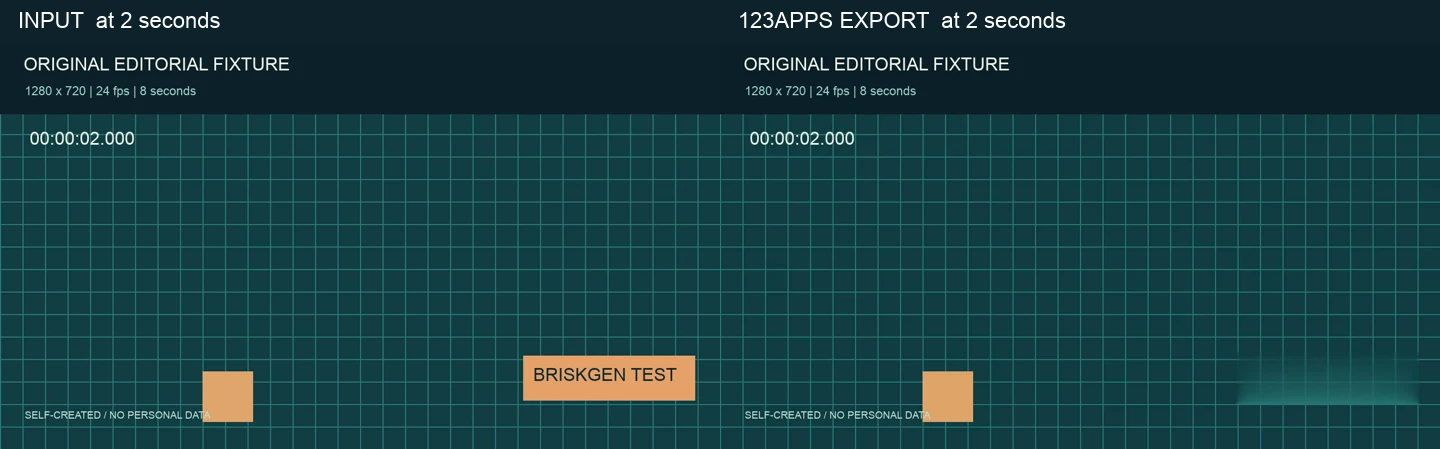
That is the main quality tradeoff. If this were an obsolete date over an unimportant wall, the patch might be acceptable. On a tiled surface, patterned fabric, or a product detail, it could draw attention to the edit. “The writing is gone” and “the background looks original” are separate acceptance criteria.
At seven seconds: movement changed the patch
Later in the clip, the orange block passes behind the fixed marked area. At 00:07, orange color appears within the smoothed patch, while the portion extending below the selection remains visible. The region does not become a clean continuation of the grid or a sharply defined moving object.
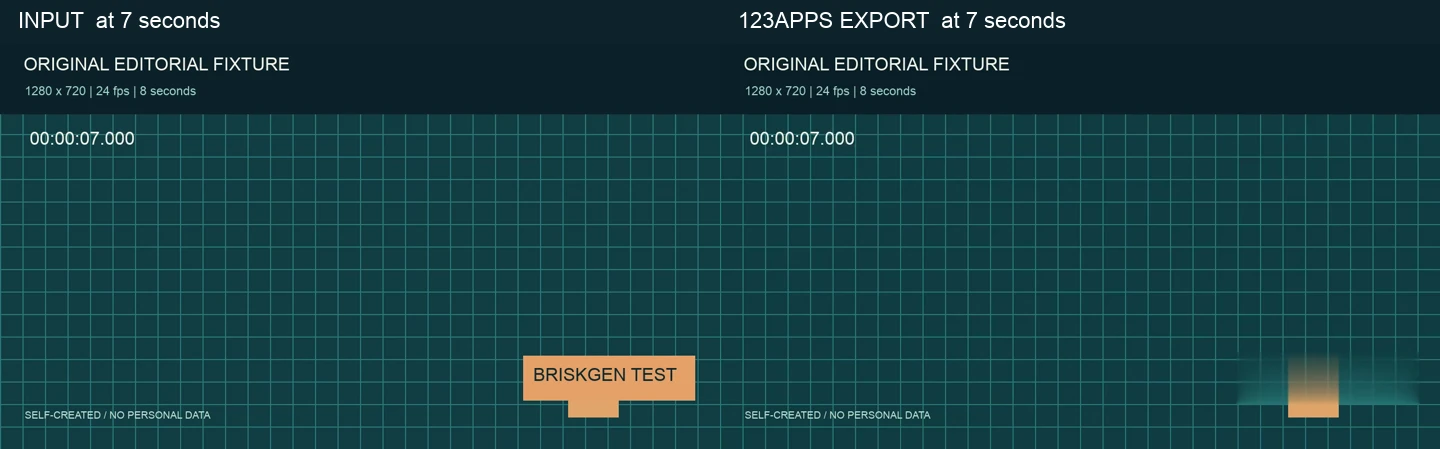
For your sample, inspect three moments: before anything enters the region, while a subject crosses it, and after it leaves. Watch for changing color, smeared edges or a rectangle that becomes more noticeable in motion. Try a smaller selection only if it still covers the whole mark; compare another export at those same moments.
What changed in the downloaded file?
The export kept the duration and frame dimensions, but changed the frame rate. These are the downloaded file’s properties:
| Property | Original | Downloaded 720p export |
|---|---|---|
| Duration | 8.000 seconds | 8.000 seconds |
| Frame dimensions | 1280 × 720 | 1280 × 720 |
| Video codec | H.264 | H.264 |
| Frame rate | 24 fps | 30 fps |
| Audio stream | AAC test tone | AAC stream retained |
| File size | 206,966 bytes | 180,297 bytes |
The 24 fps text visible in the video is part of our original slate; file inspection identified the export as 30 fps. If matching a project's frame cadence matters, check the downloaded file before combining it with other footage. Audio-stream retention also does not establish speech or music quality from this simple tone.
When to use 123apps, and when to choose another route
123apps is worth trying when the marked area is nonessential and a free 720p sample can answer your question. Keep it if the patch remains unobtrusive throughout playback and the file meets your delivery requirements. Reject the result if the repair attracts attention or destroys information you need to show.
Choose a different route according to what you can sacrifice:
- Need the original background: reopen your editing project or request an authorized clean master.
- Can lose an edge of the frame: consider the crop workflow. Check every shot because cropping affects the whole clip.
- Updating your own branding: an intentional graphic overlay may be clearer than an uneven patch, provided it does not hide useful content.
- Need repair across complex motion: compare restoration workflows on a representative authorized sample, including the hardest frames.
Use footage you own or are authorized to edit. For a first attempt, open Remove Logo from Video, select the smallest region covering the mark and export a short sample. Judge that downloaded video at the size your audience will watch. The writing disappearing is only the first check.
Method and sources
Tested on 24 October 2026 in a desktop browser with the original eight-second clip linked above, without signing in or buying Premium. Comparisons use the same timestamps from the input and saved export. Results cover this fixed mark on a synthetic background; faces, real-world textures, moving logos, large files and paid exports were not tested. Official Help describes Remove logo as desktop-only.
- 123apps Help: region selection, desktop availability, export, and troubleshooting
- Remove Logo from Video
- Crop Video
- Current pricing and tool-category limits
Cover: original AI-generated editorial scene illustrating the topic; product interface and test images in the article are documented separately.