The BriskGen Journal
How to Translate YouTube Videos: Captions and Creator Workflow
Translate YouTube videos with available captions, or publish a reviewed SRT for your own channel. Follow viewer and creator steps, examples, and checks.
To translate YouTube videos, first decide whether you want to understand a video you are watching or publish a translation on a channel you manage. Viewers can choose available subtitles and, where offered, Auto-translate. Creators can prepare a translated subtitle file and add it through YouTube Studio. Neither action automatically replaces the original speech.
Start with the result you need:
| Your task | What to use | What you get |
|---|---|---|
| Follow someone else's explanation | Available captions, then Auto-translate if offered | Translated text during playback |
| Give your audience a reviewed translation | A timed subtitle file uploaded in Studio | A selectable subtitle track on your video |
| Listen in another language | An available Audio track | A different spoken track, when the video offers one |
Watch a video with translated captions
On a desktop browser, open the video and turn on CC. Open the player's Settings → Subtitles/CC menu. Choose your language if it is already listed; otherwise look for Auto-translate, then select a language from the available list. YouTube's caption settings guidance also describes language selection and Auto-translate for mobile; the menu presentation can differ by device.
Play a short section and confirm that the captions changed language. The audio will usually remain as it was. If the translation seems odd, switch back to the source captions: an incorrectly recognized name or number can become an equally incorrect translation.
If CC is absent, captions are unavailable for that video in that player. Changing your app's display language does not create a subtitle track. Ask the channel owner for captions or a transcript rather than expecting the translation menu to recover missing speech.
If you want translated speech, check Settings → Audio track separately. That menu only provides languages available on that video. YouTube explains the distinction in Watch videos in your preferred language. Selecting a caption language is not a dubbing request.
Publish a translation for your own video
You need channel access that permits subtitle editing. Someone else's public video URL is not permission to publish captions on their channel. A creator can invite a trusted collaborator as a Subtitle Editor; that role has its own account and video-language requirements.
Prepare the final video file, a source-language transcript and one target language. Give the translator the final cut: if a sentence is removed later, both its translation and its cue times need updating. A short, authorized video is enough to try the complete workflow before localizing a library.
1. Correct the source before translating
Watch the original and check the transcript against it. Confirm product names, measurements, spoken warnings, and who is speaking. If you start from automatic captions, treat them as a draft. YouTube warns that accents, overlapping speech, and background noise can cause transcription errors in its automatic captioning documentation.
For example, a fictional camera tutorial might say: “Lock the shutter speed before adjusting the light.” A transcript that changes “shutter” to “shadow” sends the translator toward the wrong instruction. Fix the source sentence before working on the target language.
Keep a terminology note with three columns: the source term, the agreed target term, and any product label that must stay unchanged. For a camera tutorial, list the camera model and the shutter-speed menu label. Give the translator this note with the source transcript.
A useful handoff instruction is: “Translate for a beginner following this demonstration. Preserve model names, numbers, units, warnings and the order of actions. Flag unclear source wording instead of guessing. Keep subtitle text grouped by the action on screen.” Human or machine-assisted translation can follow the same brief.
Have your source video but no reading transcript?
If the final recording is on your computer but its words are not yet written down, BriskGen Audio to Text can prepare the source-language draft. Upload a local MP3, WAV, M4A, MP4 or MOV up to 100 MiB and 30 minutes. Sign in, select the file, review the estimate and transcribe. Correct names and instructions against the recording, save, then download TXT for your translator.
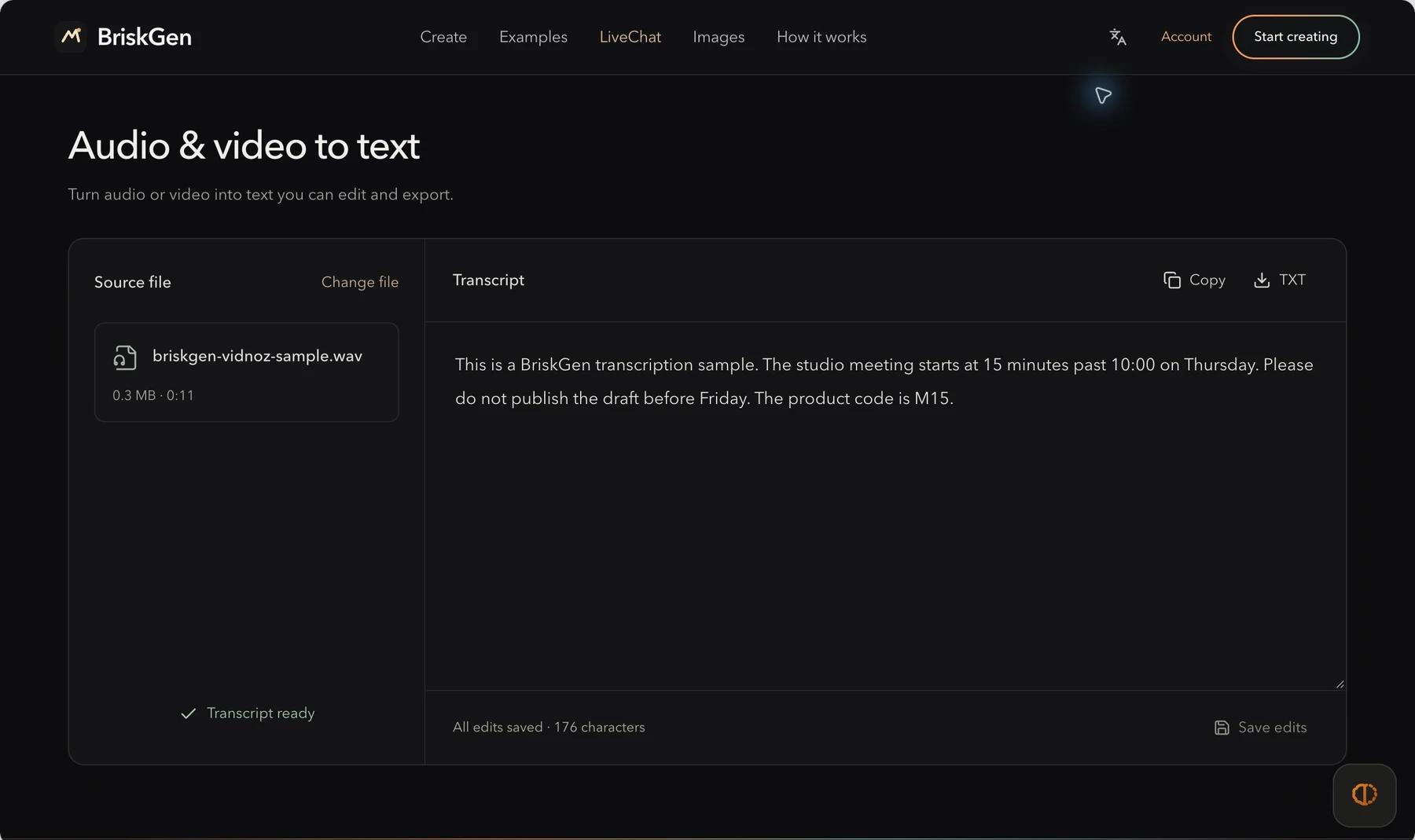
Usage is 1 credit per started 2 minutes, with a 1-credit minimum: a 12-minute-30-second video uses 7 credits. Prepare your source transcript if that is the missing input. You will then translate and time it separately; BriskGen does not import YouTube URLs, translate or export SRT/VTT. If a checked source transcript already exists, continue with it.
2. Translate the meaning and retain usable timing
Translate each speech segment in context. Shorten a long target sentence where needed without removing a condition, warning, or unit. Keep related words together when splitting lines, and read the result while the video plays.
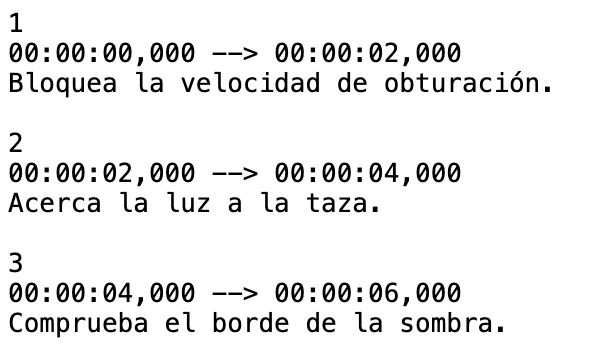
Here is a fictional six-second lighting lesson in English: “Lock the shutter speed. Move the light closer to the cup. Check the shadow’s edge.” The corresponding Spanish SRT could be structured like this:
1
00:00:00,000 --> 00:00:02,000
Bloquea la velocidad de obturación.

2
00:00:02,000 --> 00:00:04,000
Acerca la luz a la taza.

3
00:00:04,000 --> 00:00:06,000
Comprueba el borde de la sombra.
Download this original SRT example, or save the text above as a plain-text UTF-8 file named lighting-demo.es.srt. The six-second timing is fictional: replace both the text and times for your own video. Each cue has a number, a start/end time, and text, followed by a blank line. YouTube supports basic SRT files but does not recognize their styling markup; see its supported subtitle formats.
The target text must fit the time available. If a sentence cannot be read comfortably, revise the wording or cue boundaries while keeping it aligned with the spoken idea. Do not extend a subtitle into an unrelated scene just to preserve a literal translation.
3. Upload the timed track in YouTube Studio
Follow YouTube's Add subtitles & captions workflow:
- Sign in to YouTube Studio and open Subtitles.
- Select the video, choose Add language, and select the target language.
- Under that language's Subtitles column, select Add.
- Choose Upload file → With timing, continue, and select your SRT.
- Save the upload, review the track, and complete any publication action shown before checking the watch page.
Do not use Auto-sync as a shortcut for a translated transcript. YouTube specifies that an auto-synced transcript must be in the same language as the video's speech. A timed translation avoids asking speech recognition to align words spoken in a different language.
After upload, play each instruction through its cue boundary. Check that the full instruction appears during the relevant action and that the next cue does not begin before the subject changes. The older official recording below shows the separate text and time fields.
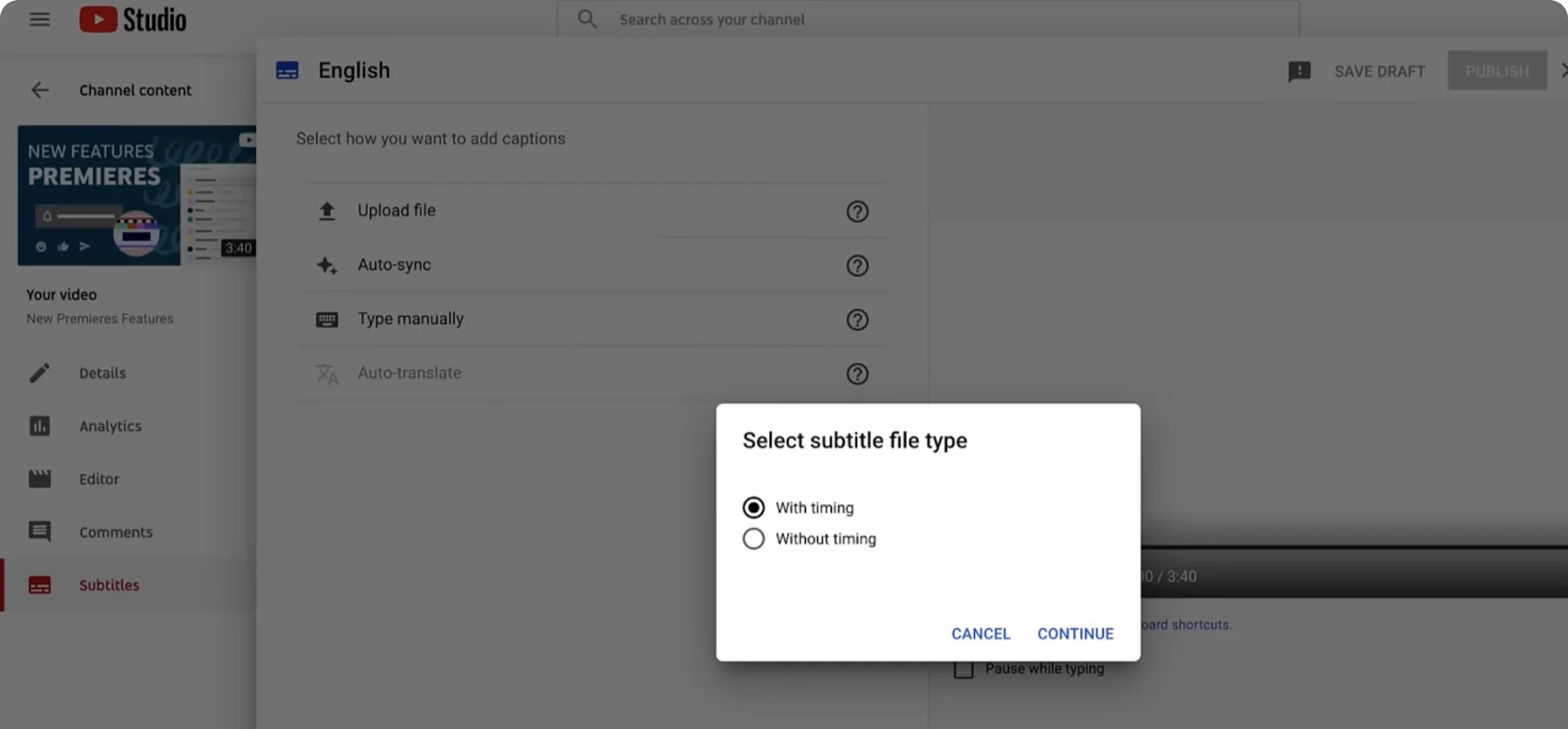
Real YouTube Creators recording at 1:44, from the roughly five-year-old official tutorial: Studio Subtitles, upload methods and With timing remain visible. Historical guidance, not a 2026 account test.
Official tutorial
.
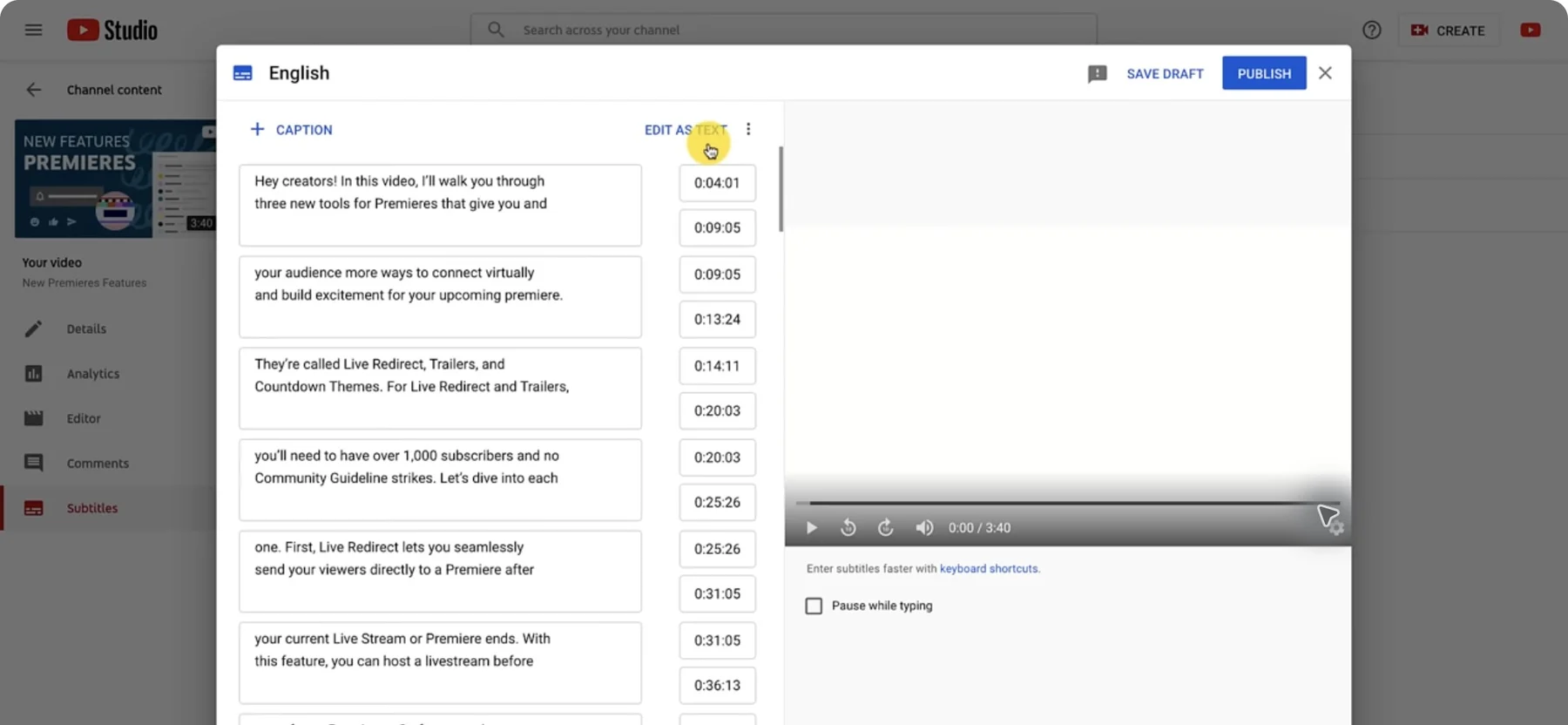
Editor context at 2:14 in the same historical official tutorial: caption text and times, video preview, and save/publish controls are visible together. Its own example differs from our Spanish SRT and is not our upload test; the lower timeline is outside this crop.
Official tutorial
.
Check the published result as a viewer
Open the video's watch page, choose the target subtitle language, and watch the whole short sample. A saved file or a completed upload is not the final check.
Check the result in the way your audience will use it:
- The target language is selectable and the text actually appears.
- The first cue starts with the right sentence; the final cue is not cut off.
- Numbers, negation, names, and instructions match the original meaning.
- Captions do not reveal an answer before the speaker gives it.
- Text remains readable on a phone-sized player without covering an essential demonstration.
Ask a fluent speaker to review important instructional or public-facing content. Automated translation can suggest wording; it cannot confirm that the viewer will perform the intended action.
If you also need a translated title and description, add them separately in Studio's language row under Title and description, then publish. YouTube provides a separate metadata translation workflow. Subtitle upload does not perform this step.
Fix the failure you can identify
| What you see | What to check next |
|---|---|
| No CC or translation option | Check whether source captions exist; as a creator, supply or correct the source track |
| Automatic captions never arrive | Check supported speech language, processing status, silence, noise, and overlapping speakers |
| SRT characters look broken | Re-save as plain UTF-8 and check the file before uploading again |
| Translation drifts after an edit | Re-time against the final cut; old timestamps cannot follow newly removed scenes |
| Track exists in Studio but not on playback | Check its publication state and select the correct video and target language |
For spoken localization, investigate YouTube's automatic dubbing separately. Eligibility, source/target language support, and review controls apply; it is not available for every channel, video, or language pair.
Keep the approved source transcript, translated subtitle file and final video together. When the cut changes, use those files to find which words and timestamps need another review.
Sources
YouTube steps follow official documentation checked on 24 October 2026. The Studio images come from an older YouTube Creators tutorial; no channel upload was performed for this guide. The downloadable SRT is an authored example whose wording and times must be replaced for your video.
-
YouTube Creators: How to Add Captions While Uploading & Editing Your Videos: older real interface recording, cited at 1:44 and 2:14; not a current-account or BriskGen upload test.
-
YouTube: adding subtitles and supported file formats, SRT requirements
-
YouTube: translated metadata, audio languages, automatic dubbing
Cover: original AI-generated editorial scene illustrating the topic; product interface and test images in the article are documented separately.