The BriskGen Journal
ElevenLabs Audio to Text: Upload, Edit, and Export
Turn a recording into a usable ElevenLabs transcript: set transcription options, fix words and speakers, align edits, and export plain text or subtitle files.
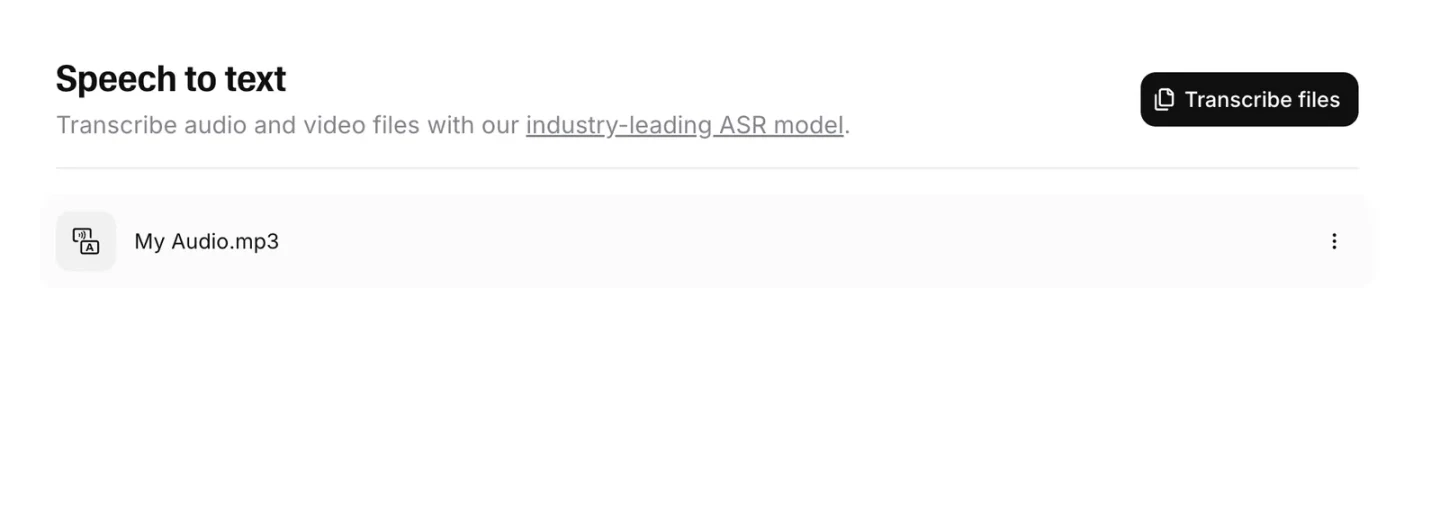
To convert a recording with ElevenLabs audio to text, open Speech to Text → Transcribe files in your account. Upload the audio or video, review it in the Transcript Editor, and use Export to download the result. ElevenLabs calls its speech recognition model Scribe.
If you need subtitles, there is an extra step: review the Subtitles version before exporting SRT or VTT. In ElevenLabs, transcript edits and subtitle edits are independent. Correcting a name in one does not update the other.
Start with a recording on your computer and decide what you will deliver. An interview for a writer can end at plain text; an editing handoff needs speaker and timing checks too:
| You need | Follow this route |
|---|---|
| A transcript to read, quote, or send to a writer | Correct the Transcript, then export Plain text |
| Captions for an editing app or video player | Correct the Transcript, open Subtitles, review the cues, then export SRT or VTT |
1. Open Speech to Text and add your recording
In the ElevenLabs dashboard, open Speech to Text and select Transcribe files. Add the audio or video you want to transcribe in the upload dialog. You can upload the video itself; there is no need to extract its audio first.
Check that the file shown in the dialog is the intended recording, particularly if you have several interview takes. The official upload guide currently lists a 3 GB file ceiling, but follow any limit and usage charge displayed in your account's upload dialog.
2. Set the language, audio events, and keyterms
Before selecting Upload files, review the options in the dialog:
| Option | What to choose | What it changes |
|---|---|---|
| Language | Select the spoken language when you know it; otherwise use Detect | Guides recognition of the speech in the recording |
| Tag audio events | Enable when sounds such as laughter or applause matter to the transcript | Includes annotations for relevant non-speech events |
| Keyterms | Add names and specialist vocabulary that occur in this recording | Guides recognition toward those terms |
| Include subtitles | Enable if your delivery needs timed captions | Creates a subtitle version alongside the transcript |
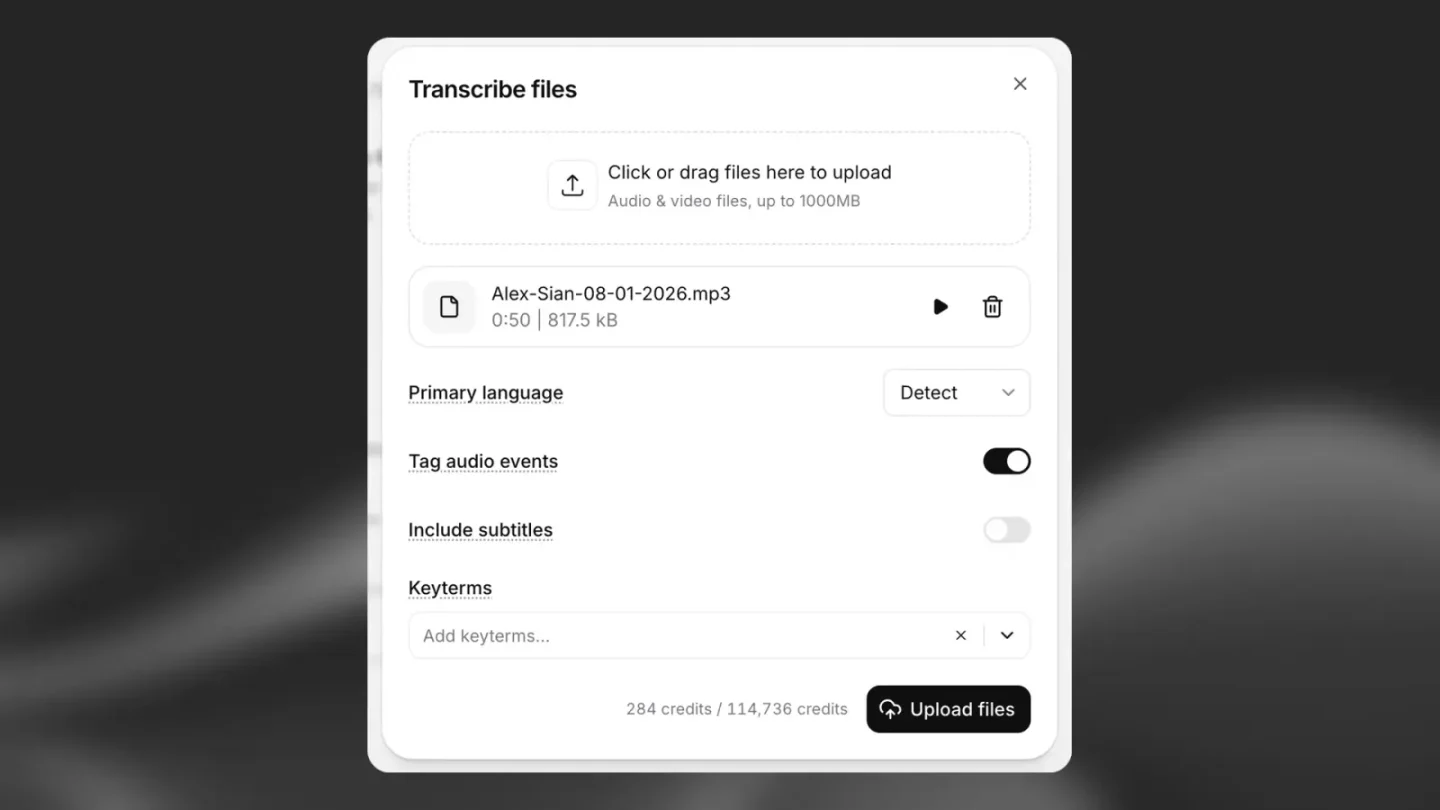
For a fictional interview about Aster M15 and Aster M50, enter those exact names as keyterms. Keep a matching spelling list beside the recording. Later, search the transcript for both model numbers: a valid spelling can still be assigned to the wrong sentence, so listen to the question and answer together.
If your goal is an ordinary interview transcript, you can leave subtitle creation for later. The editor lets you add it after transcription. Check the displayed usage charge with your chosen options, then select Upload files.
3. Open the result and correct the words
When processing finishes, click the recording's name in the transcription list to open the Transcript Editor. Click a word to play the source from that position. If a phrase is difficult to catch, use the speed control beside the playback button to slow the recording.
To fix a word, click into the transcript and type the correction. Use the audio to resolve the wording, then use your product sheet or name list to confirm spelling. For example, when both “M15” and “M50” appear in the conversation, the preceding question may establish which model the answer refers to.
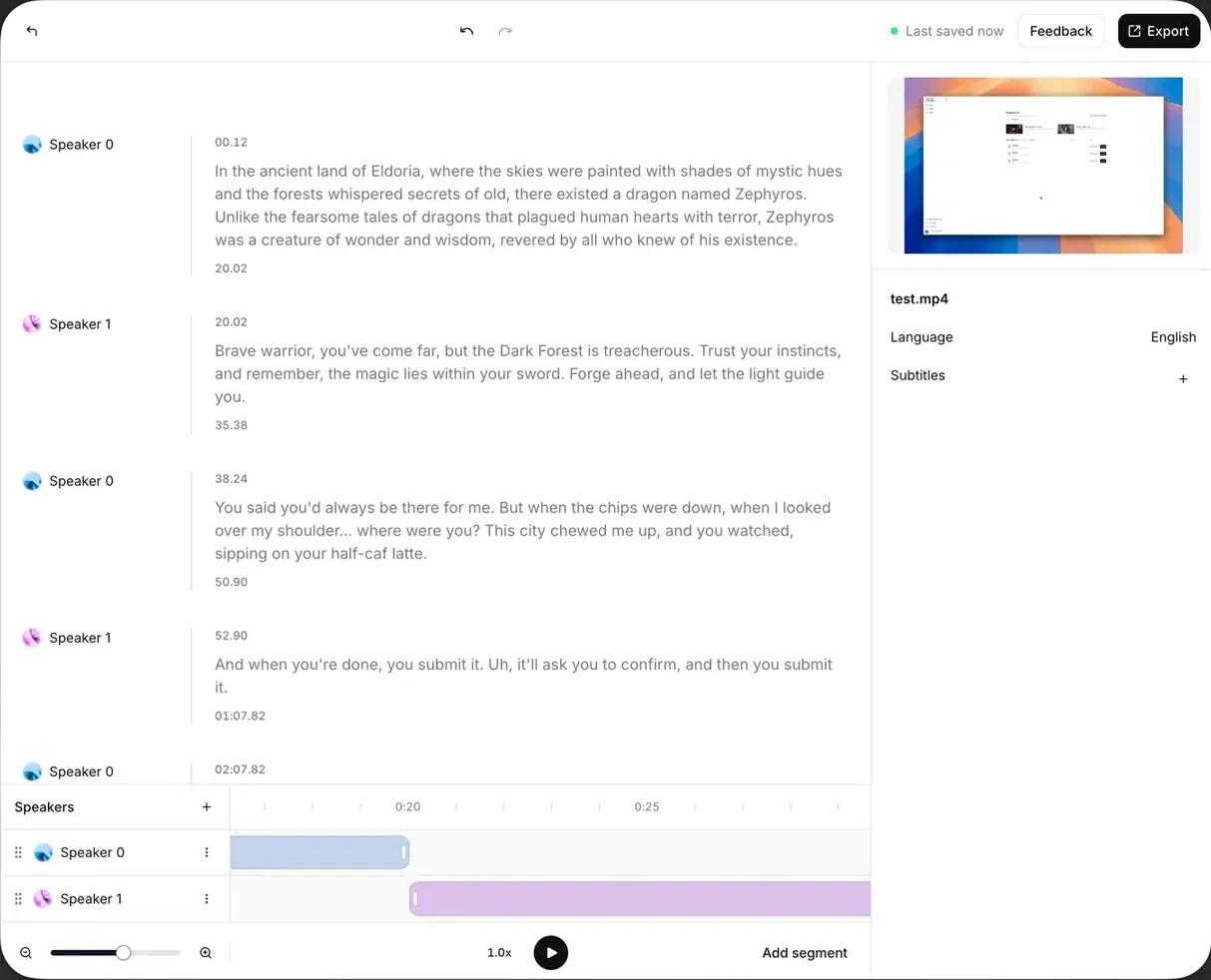
Locate the transcript, preview and Export in the editor overview before inspecting the text-edit detail below. These are separate official documentation demonstrations, not our competitor test.
Official editor guide
.
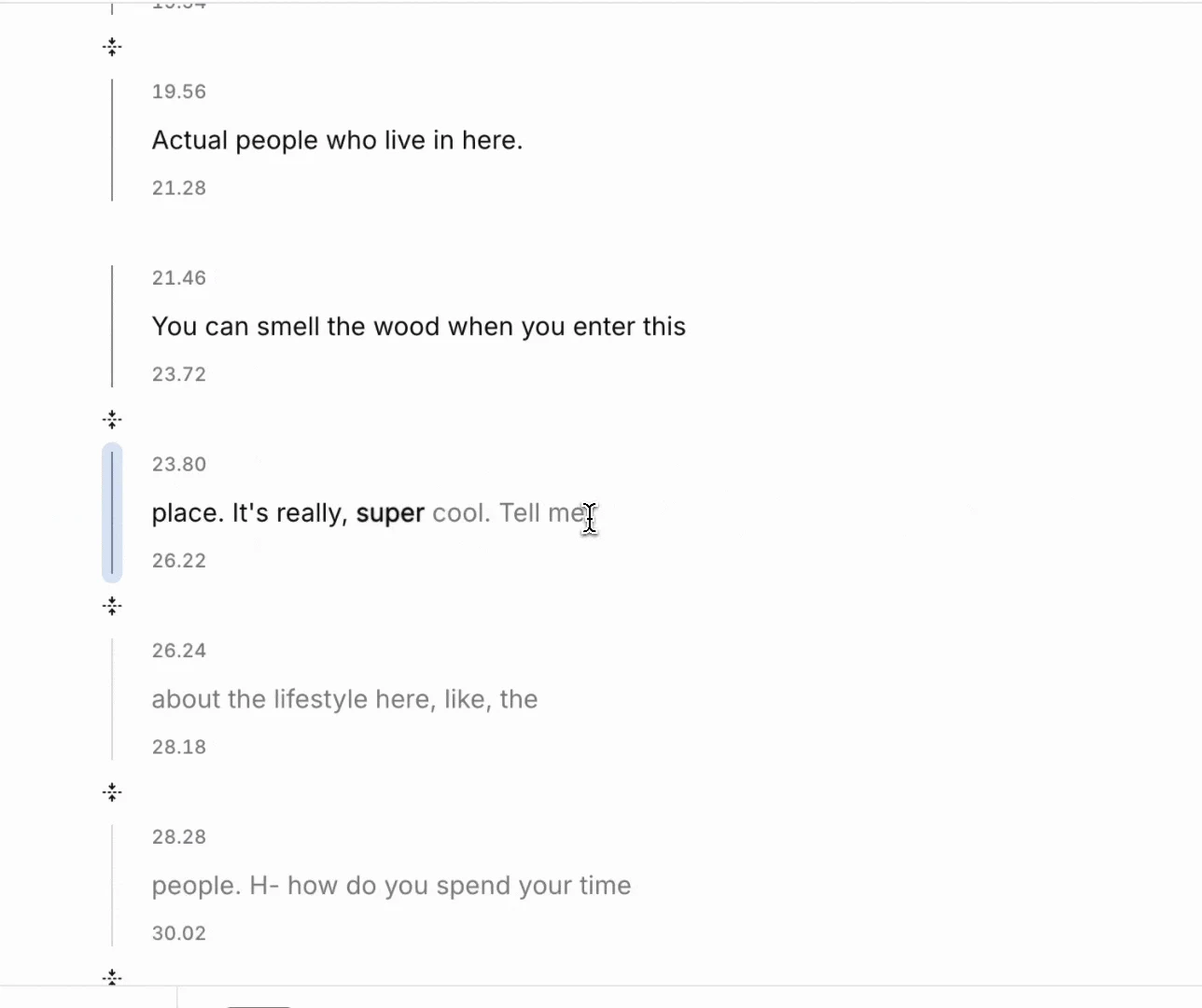
Review meaning before style. If the speaker says “send fifteen units, not fifty,” check both quantities and the word “not.” Keep hesitations when they matter to a quotation; create a separate reading copy if you want to remove repetition or shorten an answer.
4. Fix speaker labels without deleting speech
If all of one person's turns have a generic label, use edit next to Speakers to name them. If only one segment belongs to the wrong person, change that segment's assignment:
- Click the colored circle beside the segment's speaker name.
- Select the correct speaker from the dropdown.
To move every segment assigned to one speaker, open that speaker's ⋮ menu and choose Move Segments To, then select the destination speaker.
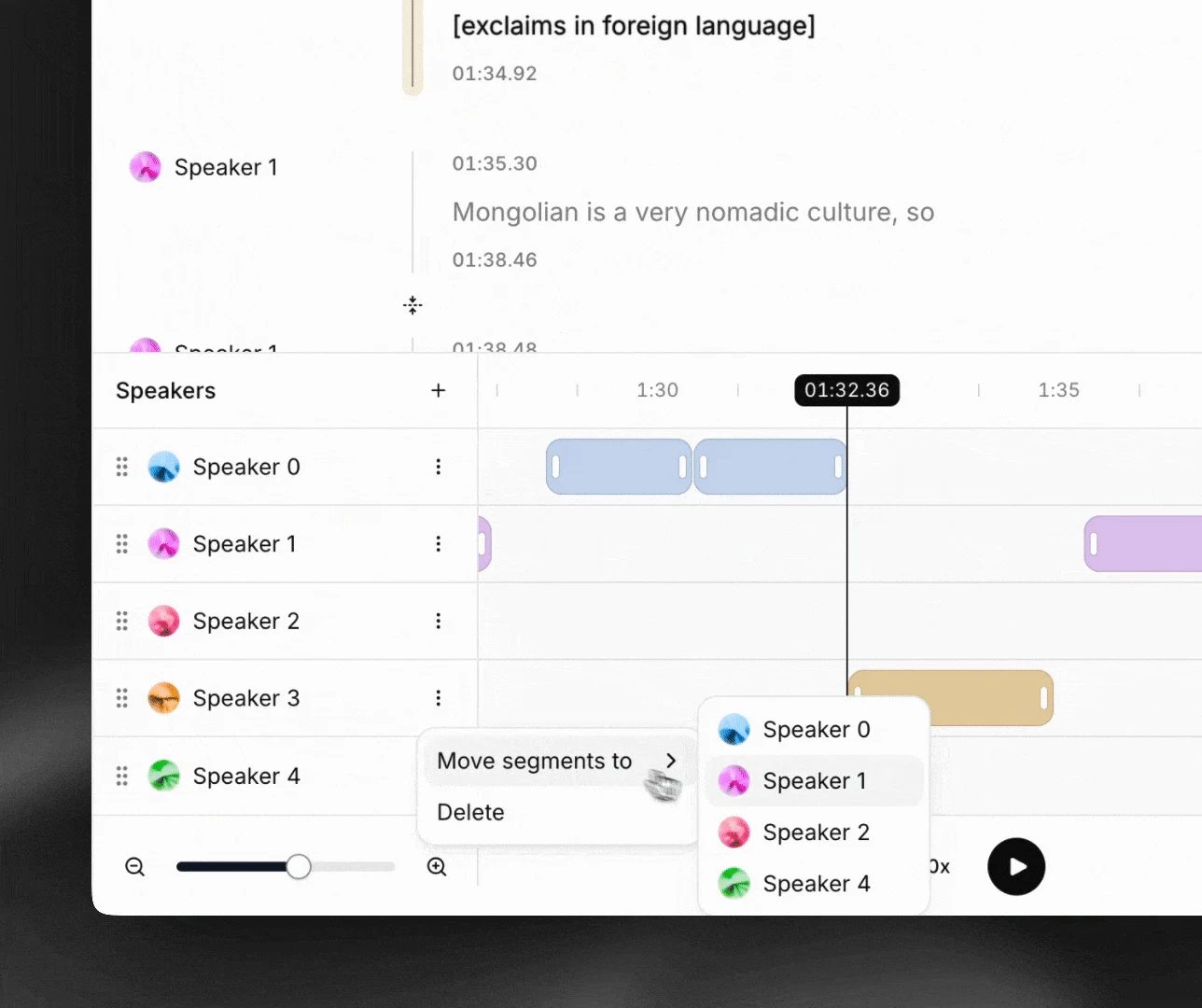
These are different operations: naming a speaker makes the label readable; reassigning segments changes which person a passage belongs to. Do not delete an unwanted duplicate speaker first. The editor guide states that deleting a speaker also deletes their associated segments.
5. Realign corrected words and adjust segment timing
After changing the text in a segment, select align words to recalculate its word-level timestamps. This is useful when a corrected name contains a different number of words from the original recognition.
If the entire segment begins too early or ends too late, adjust its boundaries separately. Drag the segment handles on the timeline, or enter the exact start and end times in the right-hand panel. Play the passage again to check that the segment contains the full utterance and does not cut off the first or last word.
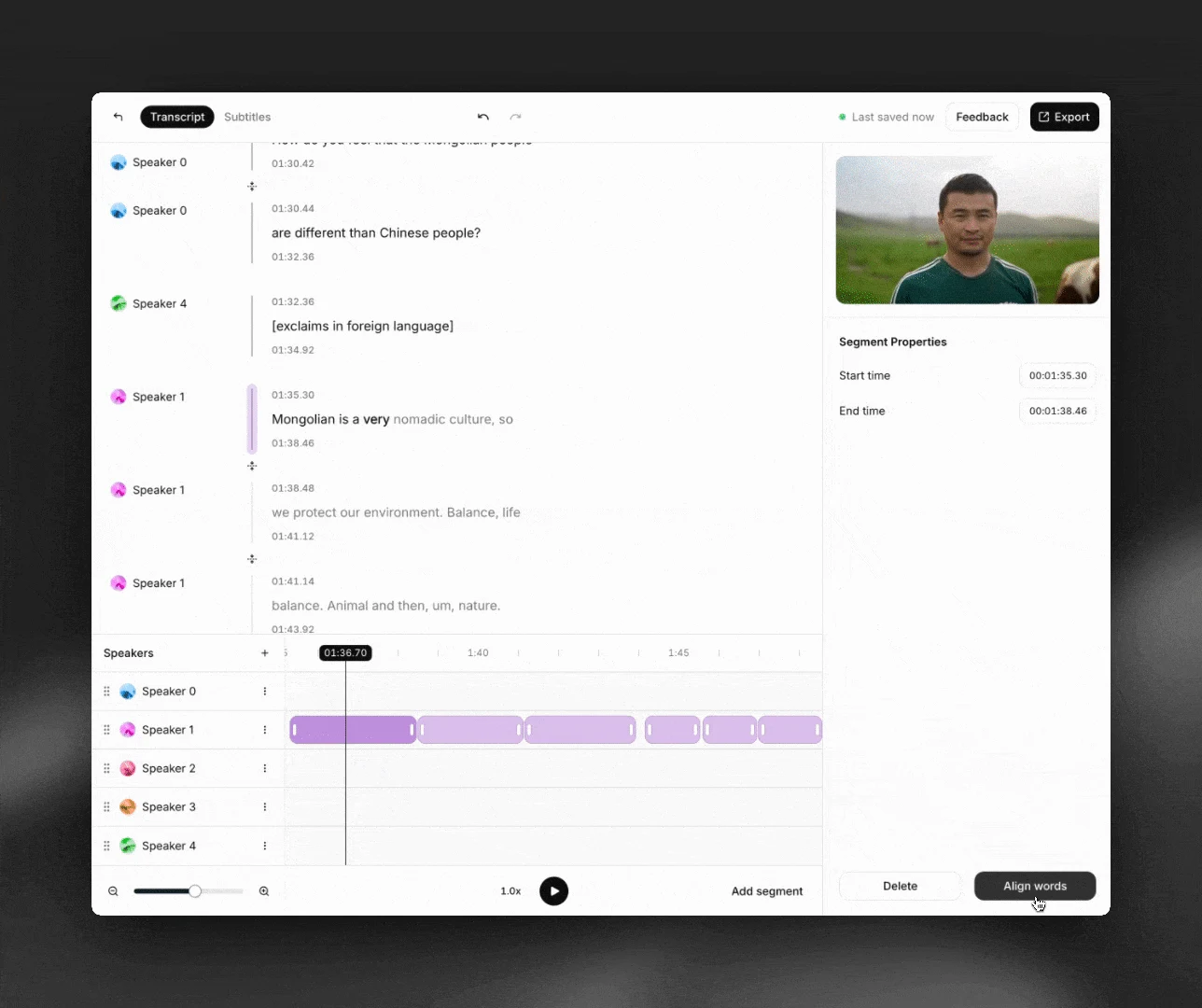
To split a long segment, place the cursor at the intended break and press Enter. To merge segments, they must be adjacent and assigned to the same speaker. Those conditions explain why two visually nearby passages may not merge.
6. If you need subtitles, review the subtitle version
For a reading transcript, continue to export. For captions, click + beside Subtitles in the right-hand panel if you did not create them during upload. Use the tabs at the top of the editor to switch between transcript and subtitle modes.
The official subtitle guide explains that the two versions are separate. If you correct “Aster M50” in the transcript after generating subtitles, check and correct the subtitle version too.
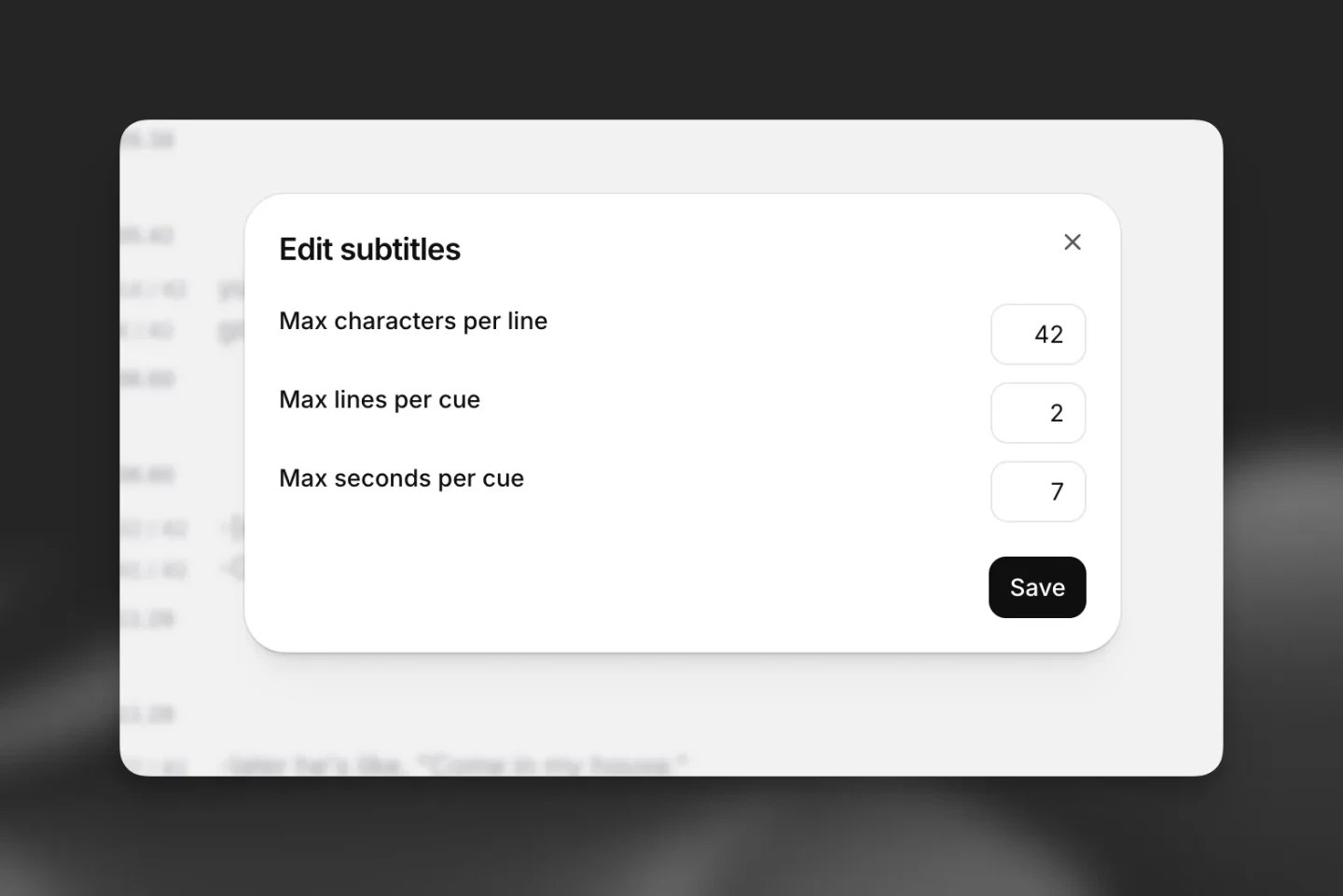
Review captions as timed cues rather than paragraphs. Under ⋮ → Edit rules beside Subtitles, you can inspect the constraints for characters per line, lines on screen, and cue duration. Red and green feedback indicates whether cues meet those rules. Adjust cue text and timing so the words can be read while the corresponding speech plays.
7. Export the file and open it in its destination
Select Export in the top-right corner. Choose Plain text for a reading copy. The transcript editor also documents JSON, HTML, SRT, and VTT exports; the subtitle editor offers SRT and VTT for its caption version. For the caption workflow above, export from the Subtitles version you just checked.
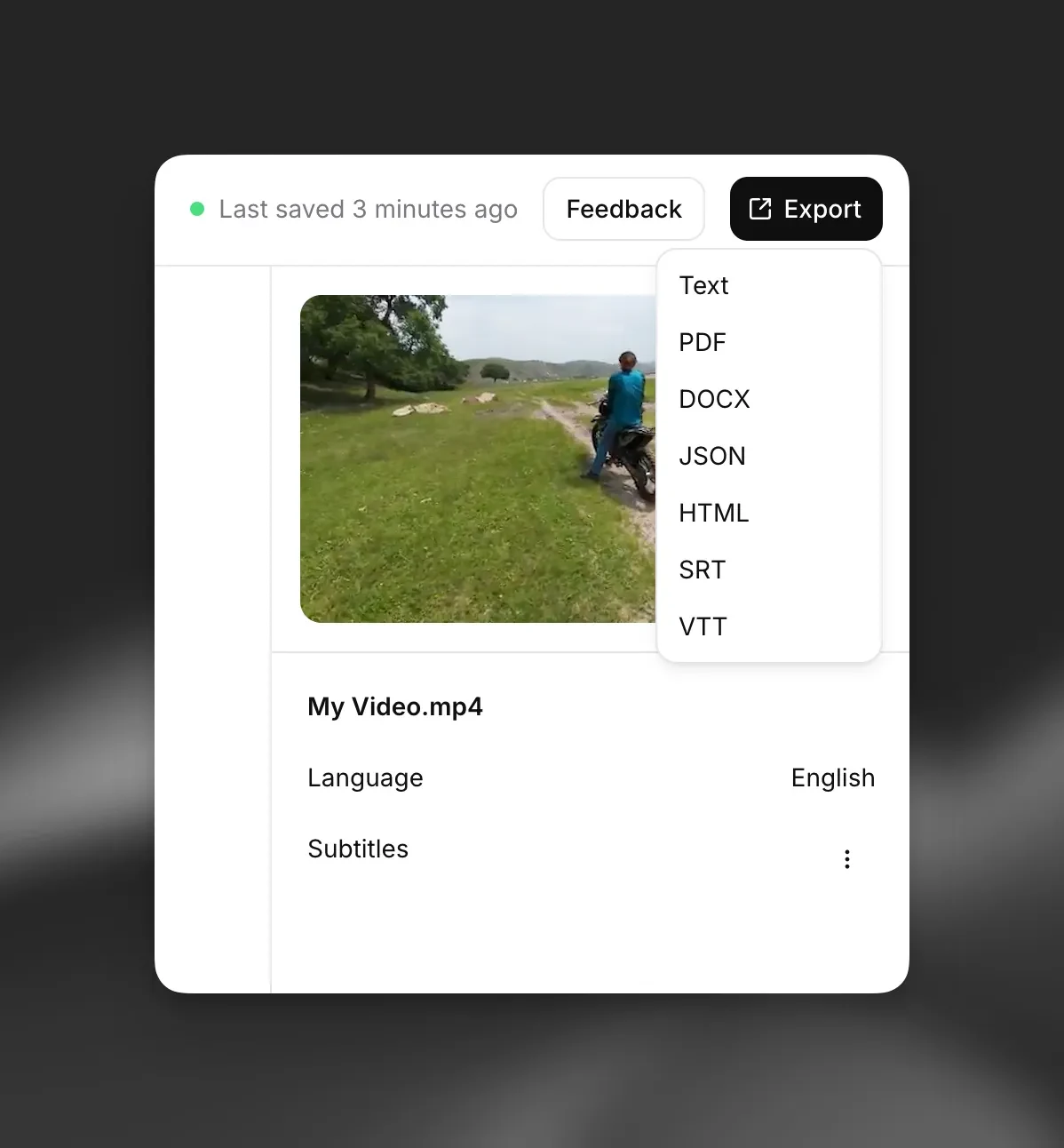
For a transcript, open the downloaded file and inspect a corrected name, the speaker context, and the end of the recording. For subtitles, load the exported SRT or VTT alongside the intended video in the receiving application. Check a caption near the beginning, a speaker change, and the final cue.
If the video has been shortened since transcription, use the same edit when checking captions. Otherwise, correct words can appear at the wrong moment. Keep clearly named transcript and subtitle files when both are part of the handoff.
When the result needs another pass
| Problem | Next action |
|---|---|
| One turn has the wrong speaker | Reassign that segment using its speaker circle |
| Corrected words have unsuitable timing | Use align words, then replay the segment |
| A transcript correction is missing from captions | Open Subtitles and make the correction there too |
| Captions drift after a video edit | Check against the same video cut used for the caption timing |
If you are taking the corrected wording into a design rather than an editing app, the Canva audio-to-text guide explains that different handoff.
When a plain transcript is enough
The speaker and timing controls above are useful for interviews and caption delivery. For a single-speaker voice note that will become a reading copy, you may only need text editing and a TXT handoff. Choose based on what the recipient will use:
For a short recording whose deliverable is plain text, you can use BriskGen Audio to Text: sign in, upload a local MP3, WAV, M4A, MP4 or MOV, review the estimate, then transcribe. Edit and save the result before copying it or downloading TXT. Files must be no larger than 100 MiB and no longer than 30 minutes. Usage is 1 credit per started 2 minutes, with a 1-credit minimum.
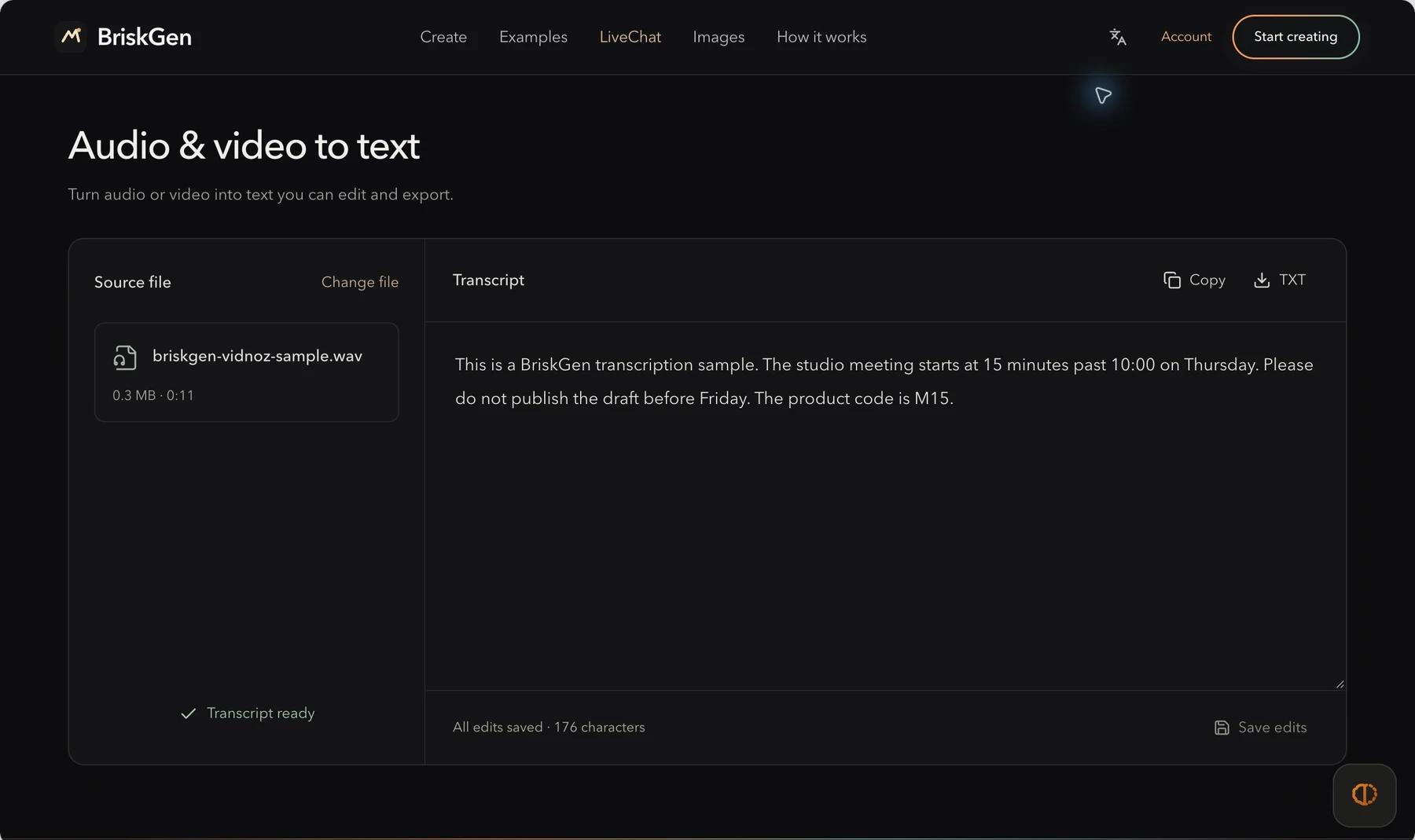
Before committing a longer file, try a short excerpt with a name, a number and a complete instruction. In our original short recording, “brisk gen” needed a manual correction to “BriskGen”; the saved TXT is the corrected reading copy. A 90-second job costs 1 credit, while 2 minutes 1 second costs 2.
Open BriskGen Audio to Text when that text handoff is the whole task. It preserves the spoken language and offers no URL import, translation, speaker timeline or subtitle export. Keep ElevenLabs for the speaker and timing workflow described above.
Sources
ElevenLabs steps follow official documentation checked on 24 October 2026; its interface images are documentation examples, and no signed-in ElevenLabs transcription or comparative accuracy test was performed. The Aster interview is fictional. The linked BriskGen recording and TXT are our original sample.
- Speech to Text: upload, options, playback, and speaker naming.
- Transcript Editor: text correction, speaker assignment, alignment, segment editing, and exports.
- Subtitle Editor: subtitle creation, independent edits, formatting rules, and subtitle exports.
Cover: original AI-generated editorial scene illustrating the topic; product interface and test images in the article are documented separately.