The BriskGen Journal
Regenerate One Scene in AI Video: What to Redo and Keep
Regenerate one scene in AI video with a focused revision. Learn which clips may need a redo, what to preserve, and what to check before confirming a quote.

To regenerate one scene in AI video, first identify whether the problem belongs to the script, the generated motion, or the final edit. Redo a small section when the story and approved references still work. Make a new generation plan when you change the overall format, shared references, or story structure.
In BriskGen, selective regeneration replaces the whole generation segment containing a changed shot. Other eligible segments can be reused. A shot and a generation segment are not necessarily the same size, so “redo this scene” does not guarantee that only one shot changes or is charged.
This guide uses The Keeper, a three-shot lighthouse story. All illustrations are original AI-created planning stills. They are not failed-video frames or proof of a rendered before-and-after repair; no paid generation was performed for this article.
Diagnose the problem before choosing a redo
A useful revision starts with an observable failure: “the compass switches hands during the lift.” “Make this more cinematic” leaves too many possibilities. Write what is wrong, when it happens, and what a successful replacement must show.
| Error type | Check first | Smallest reasonable scope |
|---|---|---|
| Wrong wording in an ungenerated script | Intended meaning and scene order | Edit the script; review the affected plan |
| Face, grip, or movement fails in a clip | References, starting pose, action complexity | Revise the shot; regenerate its containing segment |
| A good shot holds too long | Whether trimming preserves the action | Adjust the assembly in a video editor, if sufficient |
| Compass changes state across a cut | End of the previous shot and start of the next | Correct the affected shot or linked shots |
| Entire film needs a new aspect ratio | Delivery format and framing | Make a new generation plan |
Editing script text changes instructions, not pixels in an already rendered clip. Changing a shot description prepares a different generation. Trimming or reordering existing footage changes the assembled film without creating a new performance. Choose the operation that matches the problem; otherwise, you can spend another generation on something a cut would have solved.
Preserve the approved identity first
The Keeper is 35, with wavy brown hair and light stubble. His navy wool coat, cream turtleneck, and brown trousers carry through the story. Before revising motion, compare the failed section against the approved character reference. If the character is wrong in the starting image, simplifying the action alone does not resolve that disagreement.
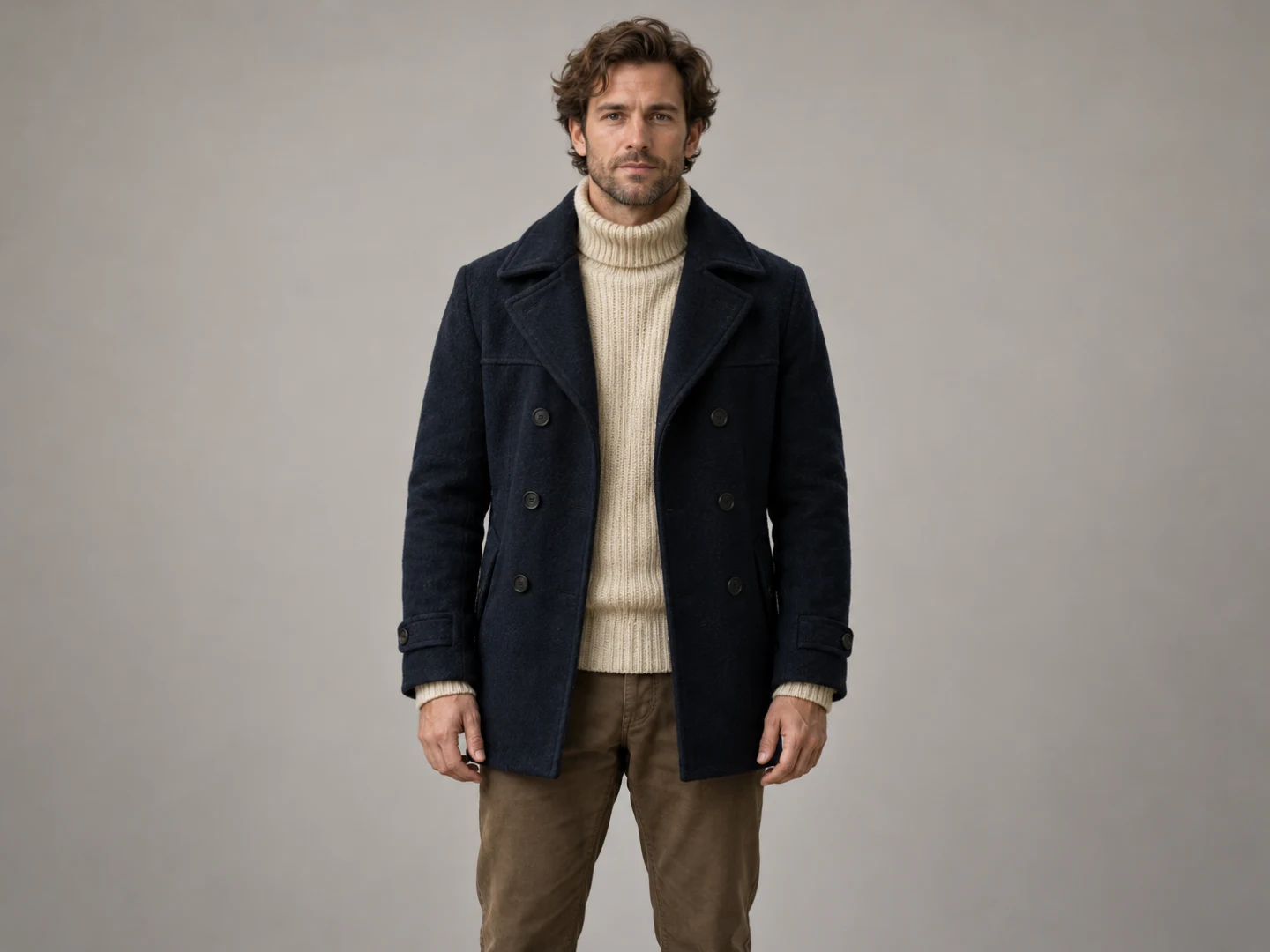
Keep this approved identity available while reviewing a replacement shot.
Keep the reference set stable while testing one local change. Replacing the portrait, costume, lighting, and action together makes the next result difficult to diagnose. Our consistent characters in AI video workflow covers building that reference set before animation.
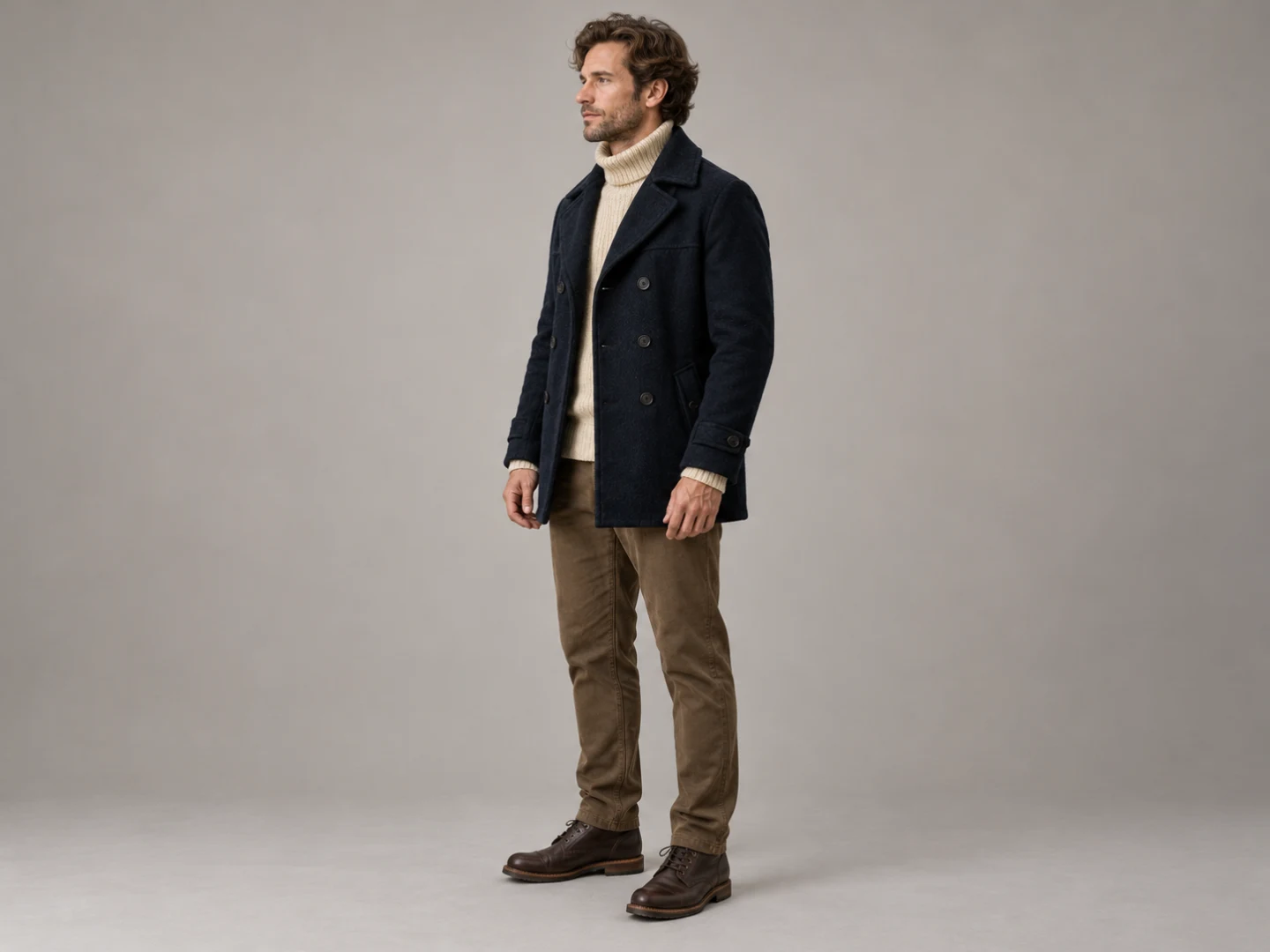
The angle reference helps distinguish a new view from a changed costume or silhouette.
The second view is useful when an interior shot looks different from the portrait. Check the collar, coat length, hair, and proportions rather than expecting identical lighting. A warm map-room lamp can make the same navy coat appear darker without requiring a wardrobe correction.
Map the three shots and their dependencies
Our story runs from a lighthouse courtyard to a map room, then to a sea cliff at sunrise. The visible compass stays open and in the Keeper's right hand. The courtyard does not show it. The interior introduces it already held; the cliff continues that state across an intentional time cut.
| Shot | Planned action | What the next shot depends on |
|---|---|---|
| Courtyard | Walk toward the map-room doorway, hands empty | Same person and clothes; dawn continues |
| Map room | Slightly raise the open compass already held in his right hand | Same compass, hand, and open lid at the cliff |
| Sea cliff | Hold the open compass while watching sunrise | A believable ending to the same morning |
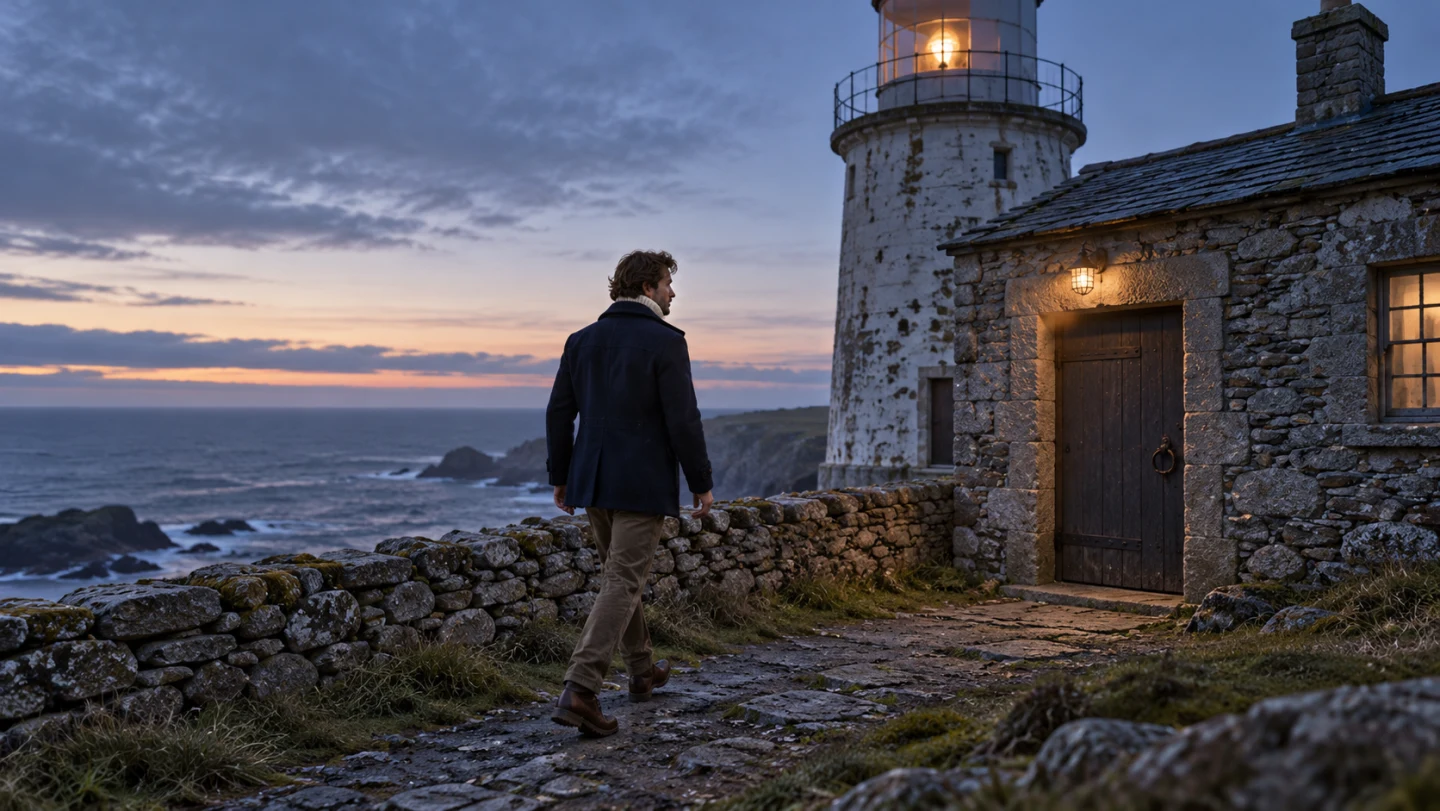
The courtyard establishes identity, clothes, and morning light; it does not show a compass pickup.
This dependency check prevents a local fix from creating a new story problem. Changing the map room to show a closed compass requires an opening action somewhere, or a revised cliff setup. A request that changes the prop state may therefore need more than one shot reconsidered, even when only one clip originally looked wrong.
The same planning habit applies to a product video storyboard: a package opened in one shot should not arrive sealed in the next without an intentional explanation.
Write a focused request to regenerate one scene in AI video
Suppose the map-room action asks the Keeper to rotate the compass, turn toward the window, and lift it while the camera circles him. If that motion fails, first try replacing the complicated action with one small lift. Keep the camera steady for that test.
Runway's Gen-4 prompting guide recommends starting with simple motion descriptions and adding details gradually. That supports the revision method here; it does not establish identical behavior across providers.
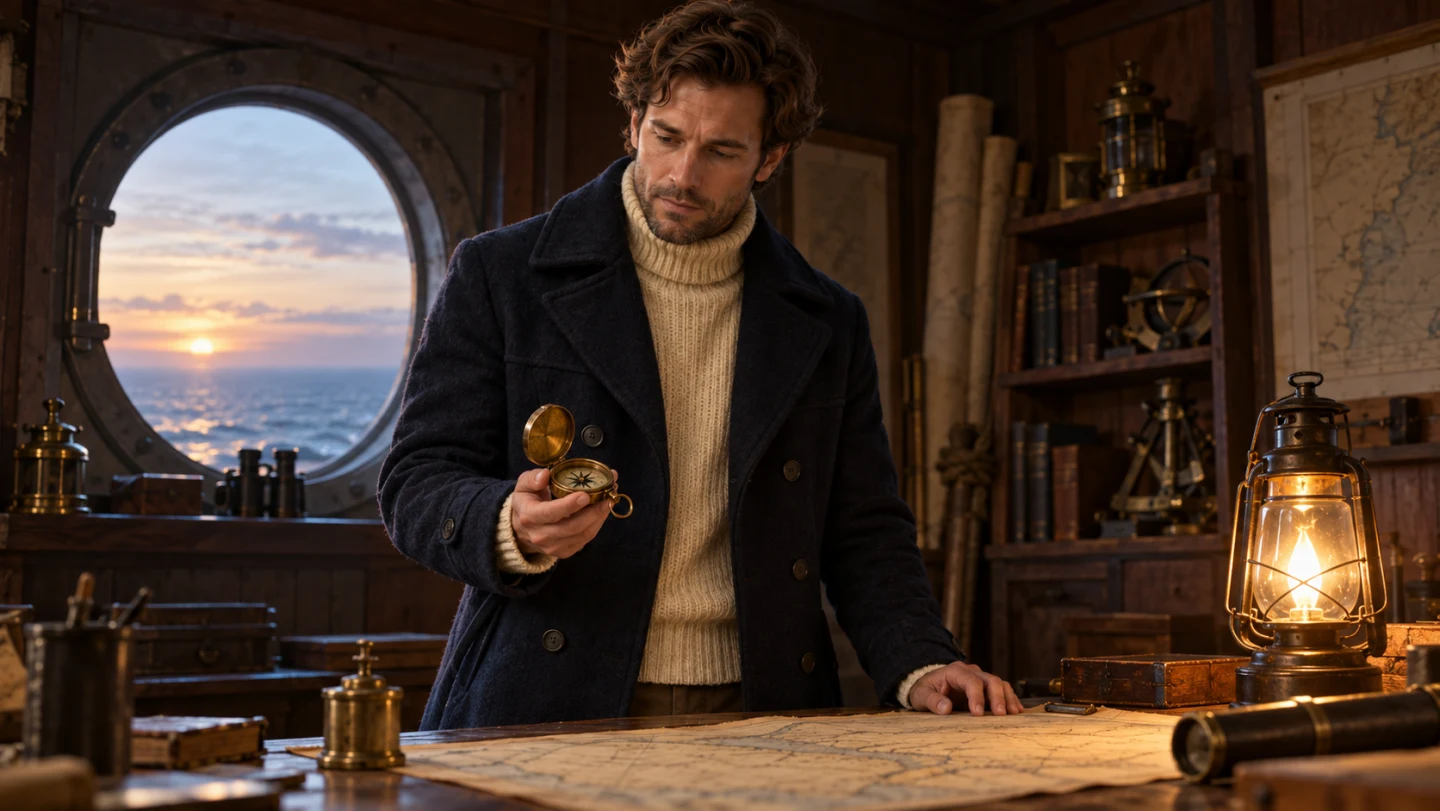
Start from what the still actually shows: a held compass can be raised slightly.
Copy this as a revision brief, adapting the shot name to your project:
Revise only the map-room shot's action.
Replace the complex rotation with a small, slow lift of the compass.
The Keeper already holds the open compass in his right hand.
Keep his approved face, wavy brown hair, light stubble, navy wool coat,
cream turtleneck, and brown trousers. Keep the map room at dawn.
Use a steady medium shot; keep the compass open and in his right hand.
Preserve the courtyard and sea-cliff shot instructions and references.
Show the affected generation segments and quote before generating.
This is a plain-language request, not special syntax or a guarantee. Confirm that the resulting plan reflects it. “Pick the compass up from the table” would contradict this starting pose: the compass is already in his hand. To show a full pickup, first approve a different starting image with an empty hand and the compass resting on the table.
MiniMax's video input documentation distinguishes first-frame images from reference images. Check how the selected workflow uses your image. A visual reference does not automatically establish an exact starting frame.
Keep the prop state explicit
A small prop can carry the causal link between scenes. Record its brass finish, size, case shape, and open lid. Then distinguish a design error from an action error: a different compass needs a reference correction; fingers merging into the correct compass during a lift needs a motion review.
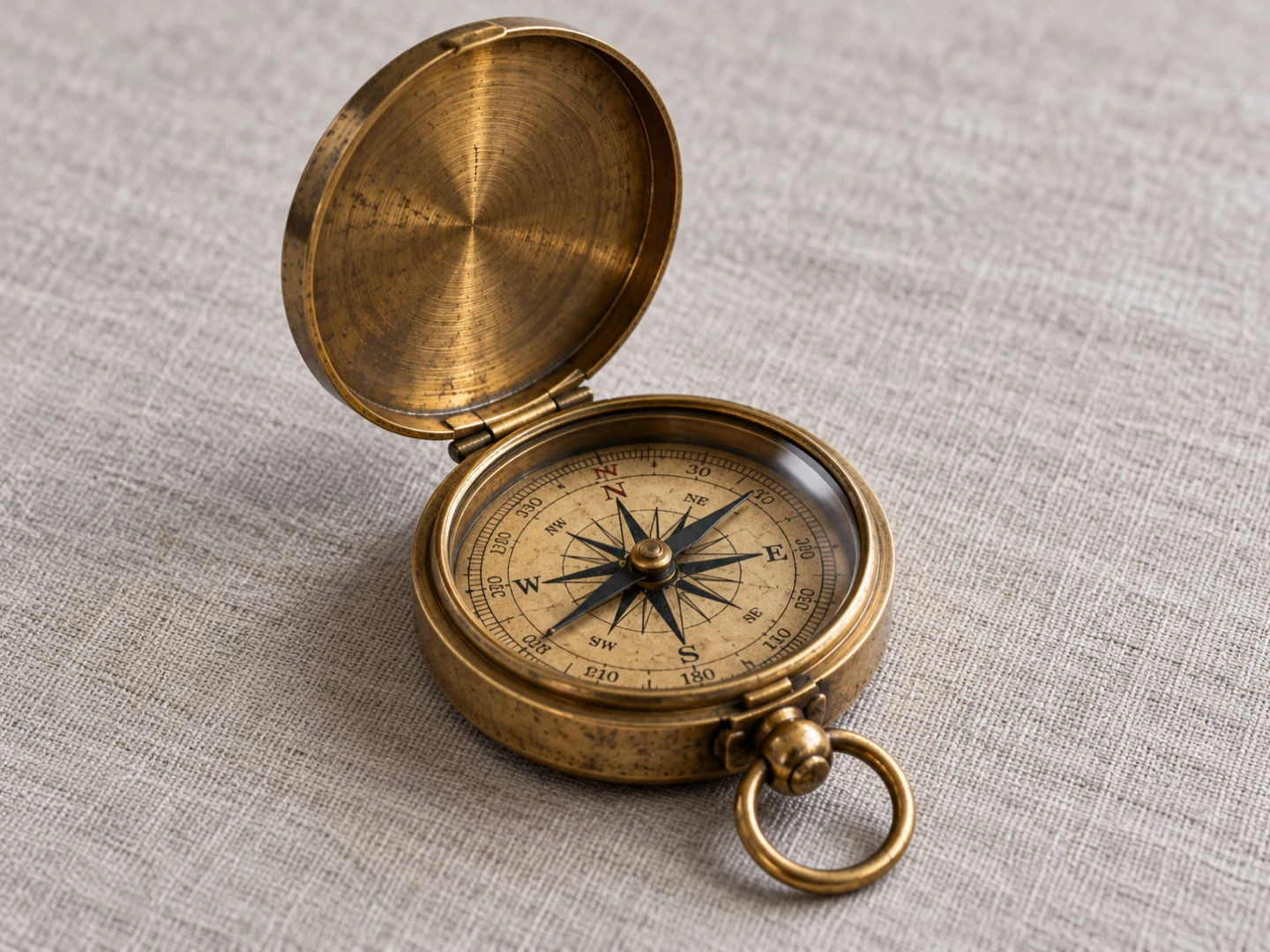
Use the prop reference to check shape and lid state before changing the movement.
Change one clear variable per attempt. If the compass stays open but the grip fails, keep the lid instruction and reduce hand movement. If the entire face changes after a turn, reconsider the turn and relevant angle reference. Keep a short note of each request so you can compare attempts against the same acceptance condition.
Check the actual regeneration scope and quote
Selective regeneration in BriskGen works at generation-segment level. Imagine three planned shots lasting 4, 5, and 6 seconds. If the changed 5-second shot shares a generation segment with another shot, the redo includes that entire segment. This is a hypothetical example, not a claim that BriskGen always groups those durations together.
Reuse also depends on compatible inputs. Changing source references, prompts, or the set of affected shots can change whether an earlier segment remains eligible. A local redo inherits the successful baseline's aspect ratio and resolution. Conflicting settings require a new generation plan rather than quietly mixing formats.
Before confirming, check the page's current quote, which segments will be generated, and which earlier outputs can be reused. Do not estimate the charge by counting revised shots. This article provides no dollar price, credit amount, or percentage saving; the actual plan and displayed quote govern the decision.
Review the entire replacement segment and both cuts
When a replacement arrives, watch every shot inside its segment, including shots you did not request to change. A newly acceptable compass lift does not prove that the face, neighboring shot, or pacing stayed acceptable. Then watch the assembled sequence at normal speed.

Use the planned cliff state to review the cut after the revised map-room action.
Check the entrance to the replacement, its complete action, and its exit. Does the person remain recognizable? Does body-relative right remain right after a camera-angle change? Does dawn progress toward sunrise? Inspect the compass and fingers during motion, not just the first frame. For broader shot choices, see the cinematic video guide.
Keep the previously approved version accessible until the replacement passes review. Confirm the preferred result before exporting the assembled film. In the creative workspace, begin with one specific shot revision and inspect the resulting plan and quote before committing to generation.
Frequently asked questions
Can I fix one second without regenerating the rest?
BriskGen's selective regeneration replaces the containing generation segment. It is not arbitrary one-second or pixel-level editing. If a trim solves the issue, use an appropriate video editor. If the performance itself fails, revise the shot and review the scope of the proposed replacement.
Will only the changed shot use credits?
Not necessarily. The relevant unit is the generation segment containing the changed shot, and a segment can include other shots. Eligible unchanged segments may be reused. Read the current quote before confirmation instead of assuming that one changed storyboard row means one shot's charge.
Can I change aspect ratio or resolution during a local redo?
A local redo retains the successful baseline's aspect ratio and resolution. Plan a new generation when you need a different format. That also gives you a chance to reconsider framing: a wide shot's important hand or prop may not fit the intended portrait composition.
Is selective regeneration the same as video inpainting?
No. This workflow revises instructions and generates replacement footage for the affected segment. It does not promise to preserve every surrounding pixel while painting over a face, object, or masked area. Judge the complete replacement and its continuity with the retained footage.