The BriskGen Journal
Vidnoz AI Audio to Text: A Practical Transcription Guide
Use Vidnoz AI audio to text to turn a recording into a transcript. Check upload limits, choose TXT or SRT, review key details, and understand free-use caveats.
Vidnoz AI audio to text lets you upload a recording and choose Text, JSON or SRT. Use Text for a reading transcript, SRT for a subtitle draft, and JSON only when you have a program ready to read its fields. The public converter lists a 200 MB, 30-minute file limit.
Start with a short excerpt containing the details that matter in your recording: a difficult name, a number and a complete instruction. Download it in your intended format and check that handoff before processing a longer session.
Check the recording and choose the output first
The Vidnoz public converter’s published specification lists a 200 MB file limit and a 30-minute duration limit. The actual upload area we inspected lists MP3, AAC, M4A, WAV, FLAC, Opus, MP4, M4V, and WEBM. Treat both limits as gates: a small file can still be too long, and a short high-bitrate recording can still be too large.
Keep the original recording. If you need to split it, cut at a pause, name the pieces in order, and record their starting positions in the original. For example, briefing-02 might begin at 12:40. Those offsets matter when a colleague later asks where a quotation came from.
The output menu offers three choices. Pick the one your next application or colleague actually needs:
| Your next task | Useful output | What to inspect after download |
|---|---|---|
| Read, quote, or turn a recording into notes | Text/TXT | Correct wording, paragraph breaks, names, and numbers |
| Hand structured data to a developer | JSON | The actual fields and whether the receiving program accepts them |
| Prepare subtitles for a video editor | SRT | Caption text, time ranges, and alignment with the intended video |
Choosing JSON does not prove the file contains a particular speaker field or timestamp structure. Open an example before designing an integration around it. Choosing SRT gives you a subtitle-file workflow; it does not establish that captions are already attached to your video.
Convert one file through the public tool
The documented public-page sequence is short:
- Open Audio to Text and upload the recording.
- Set Original language to the language being spoken and choose the output file type.
- Select Transcribe Audio Now, review the result, and download it.
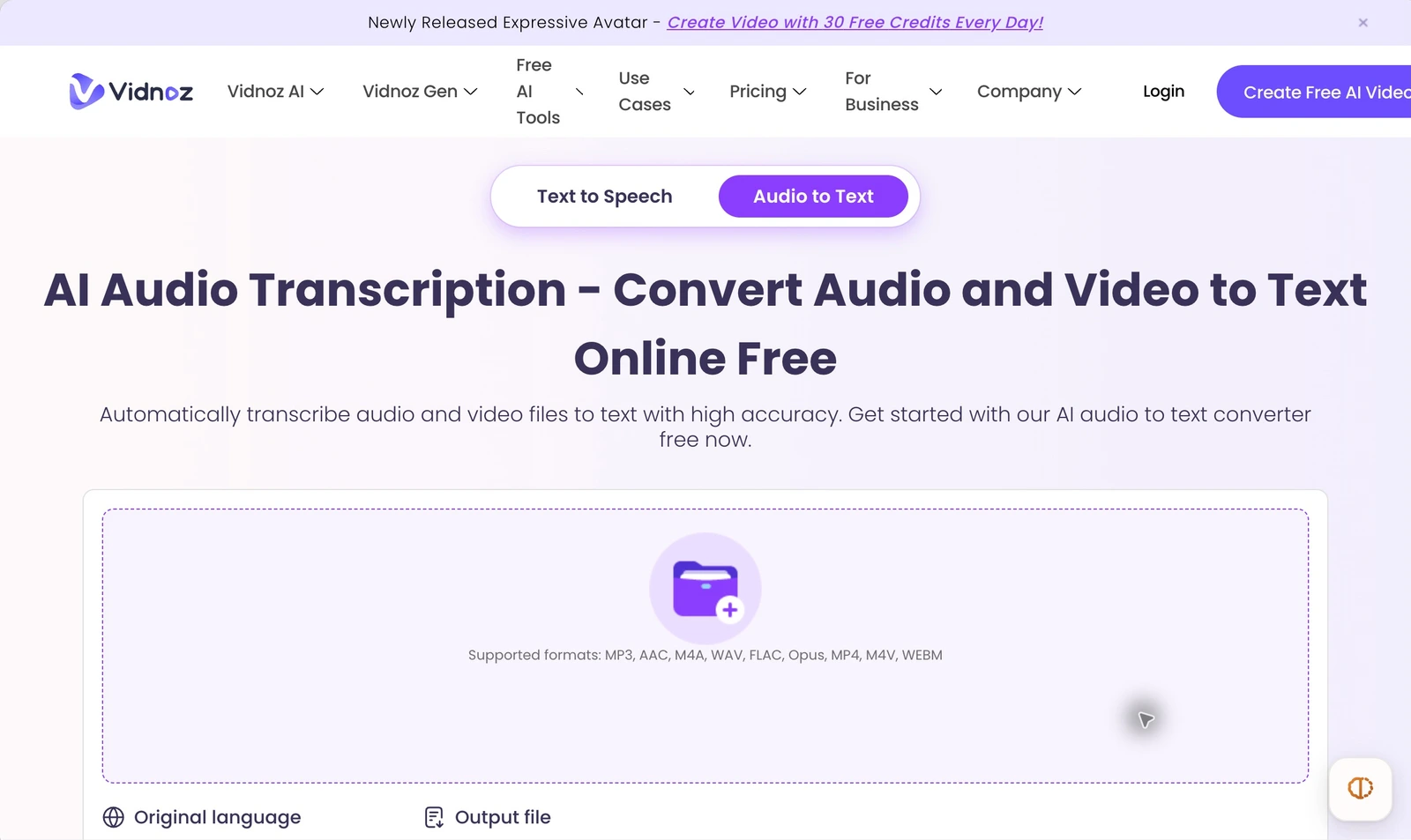
Public-tool overview: locate the Audio to Text upload area first. We inspected the public page and menu without uploading a file. Vidnoz source.
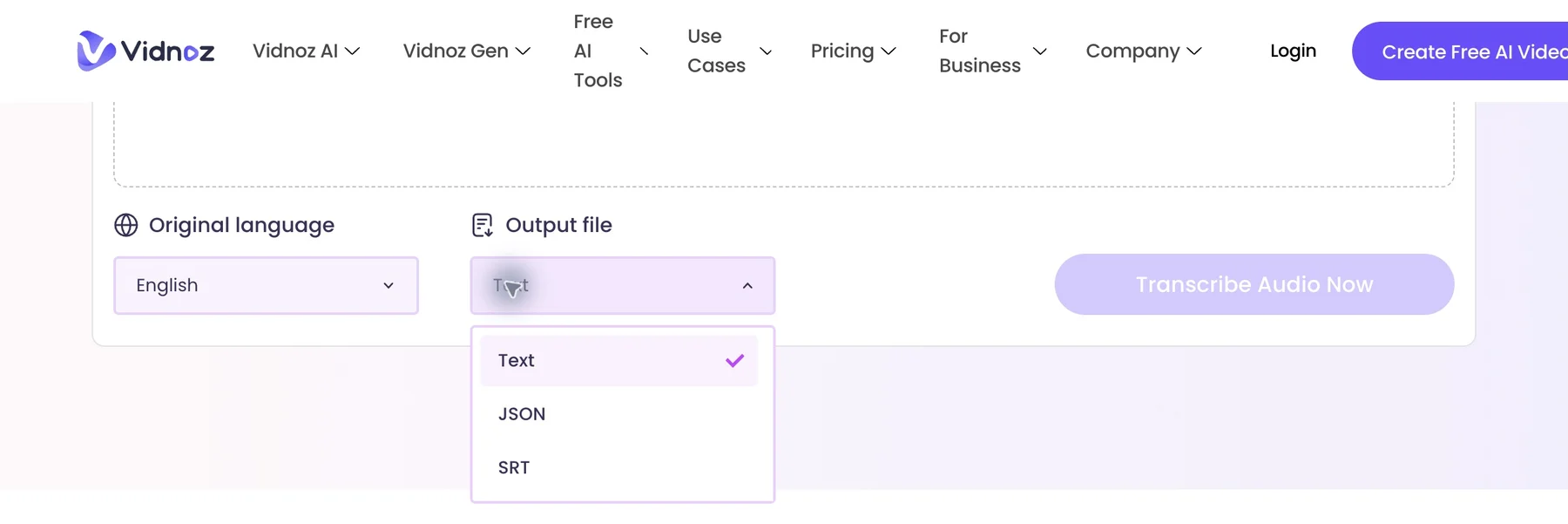
Format selection in the same public tool, retaining navigation, language and the submission control to connect it to the upload overview. No transcription was submitted. Vidnoz source.
Use the spoken language, rather than the language of the article you intend to write afterward. Transcribing an English interview and writing a Chinese summary are separate tasks. A language selector is not evidence that the tool will translate a recording into your desired publication language.
Before starting, play the source locally and check the beginning, middle, and end. Confirm that the voice is audible, the correct take is present, and the file has not captured only a silent microphone channel. If the recording contains a long introduction or unrelated discussion, make a clearly named working excerpt while preserving the original.
After downloading, open the file in the application that will receive it. A browser download notification alone is not a useful completion check. For TXT, read the text. For SRT, load it alongside the correct cut of the video. For JSON, validate it with the receiving workflow before processing multiple files.
Check the selected recording before starting
These next two states come from Vidnoz’s January 2026 official tutorial, rather than our own conversion. In the selected-file state, check the filename and duration, set the original spoken language, and keep the intended output format in view. This avoids transcribing the wrong take or choosing a different handoff format.
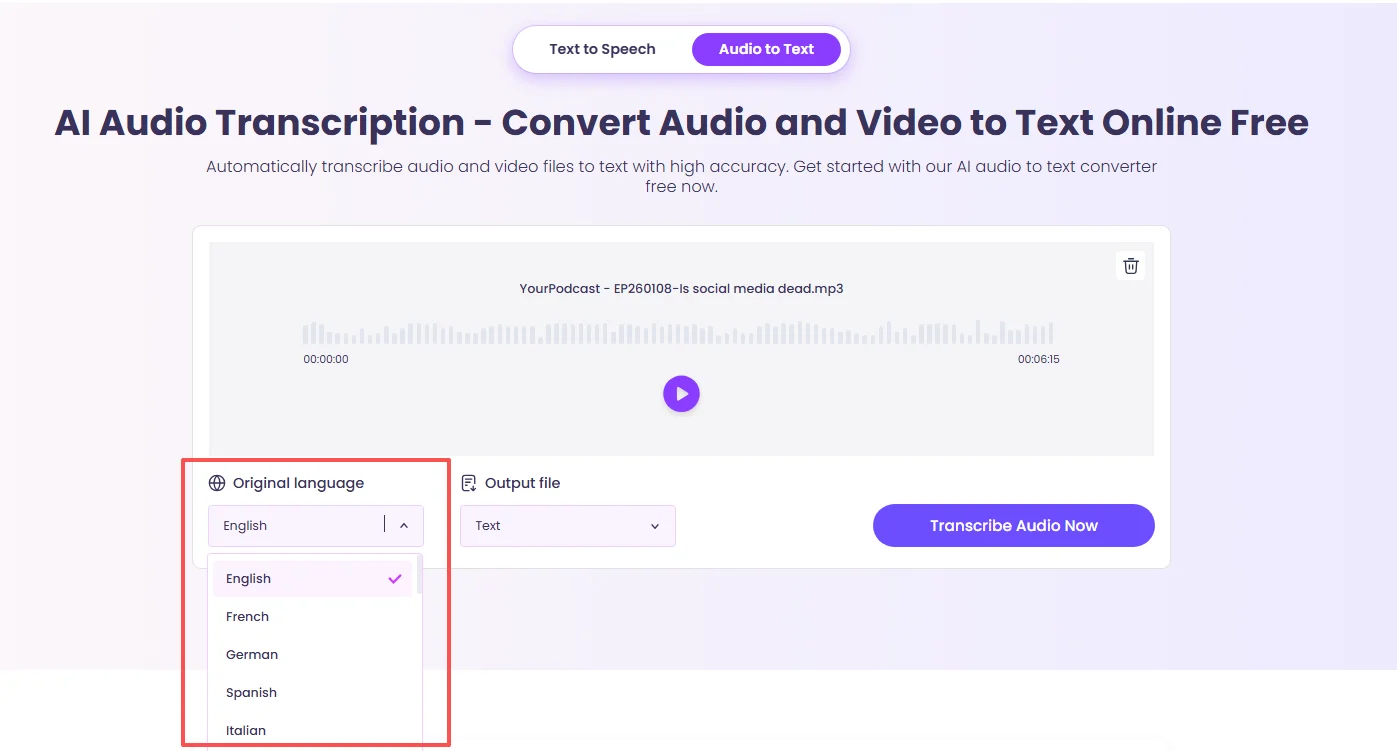
Official selected-file example: the player, language menu, output format and next action remain visible together.
Official example
.
Find the actual output, then open it
The official result example places the TXT filename and Download action below the recording. After downloading, open that file and check the beginning and final sentence against the recording. The older image’s “4 Credits” badge is not a current price or free-allowance quote.
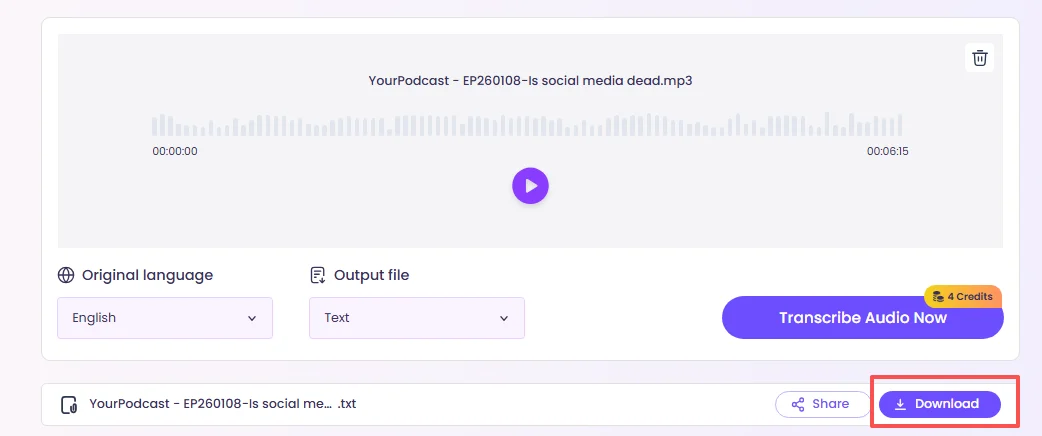
Official January 2026 result example, with the unrelated promotional banner excluded. It illustrates where the TXT download appears.
Official example
.
Need an editable TXT rather than captions?
For subtitle or structured-data delivery, start with Vidnoz’s SRT or JSON option and inspect a sample export. For a voice memo that needs to become a corrected reading copy, BriskGen Audio to Text keeps transcription, text editing, saving and TXT download in one workspace. Here are the differences that affect that choice:
| Decision | Vidnoz public converter | BriskGen Audio to Text |
|---|---|---|
| Recording input | Listed audio/video formats, up to 200 MB and 30 minutes | Local MP3, WAV, M4A, MP4 or MOV, up to 100 MiB and 30 minutes |
| Text handoff | Text download is listed | Editable, saved transcript; copy or TXT download |
| Timed captions or structured data | SRT and JSON are listed | No SRT, VTT or JSON export |
| Usage | Check the exact public tool and account allowance | 1 credit per started 2 minutes; minimum 1 credit |
In BriskGen, sign in, select the file and review the displayed credit estimate before starting. After transcription, replay the original recording locally while correcting the text. Save the corrections before downloading, then open the TXT and check a corrected name and the final sentence. A 90-second file uses 1 credit; a 2-minute-1-second file uses 2. The tool keeps the original spoken language; it does not translate or accept a video URL.
In our 10.96-second English sample, the draft wrote the brand as “brisk gen.” We changed it to “BriskGen,” saved, and downloaded the TXT. The useful checks were the meeting time, product code M15, and the instruction “do not publish before Friday.” Listen to the original WAV alongside the saved TXT to see what the final handoff contains.
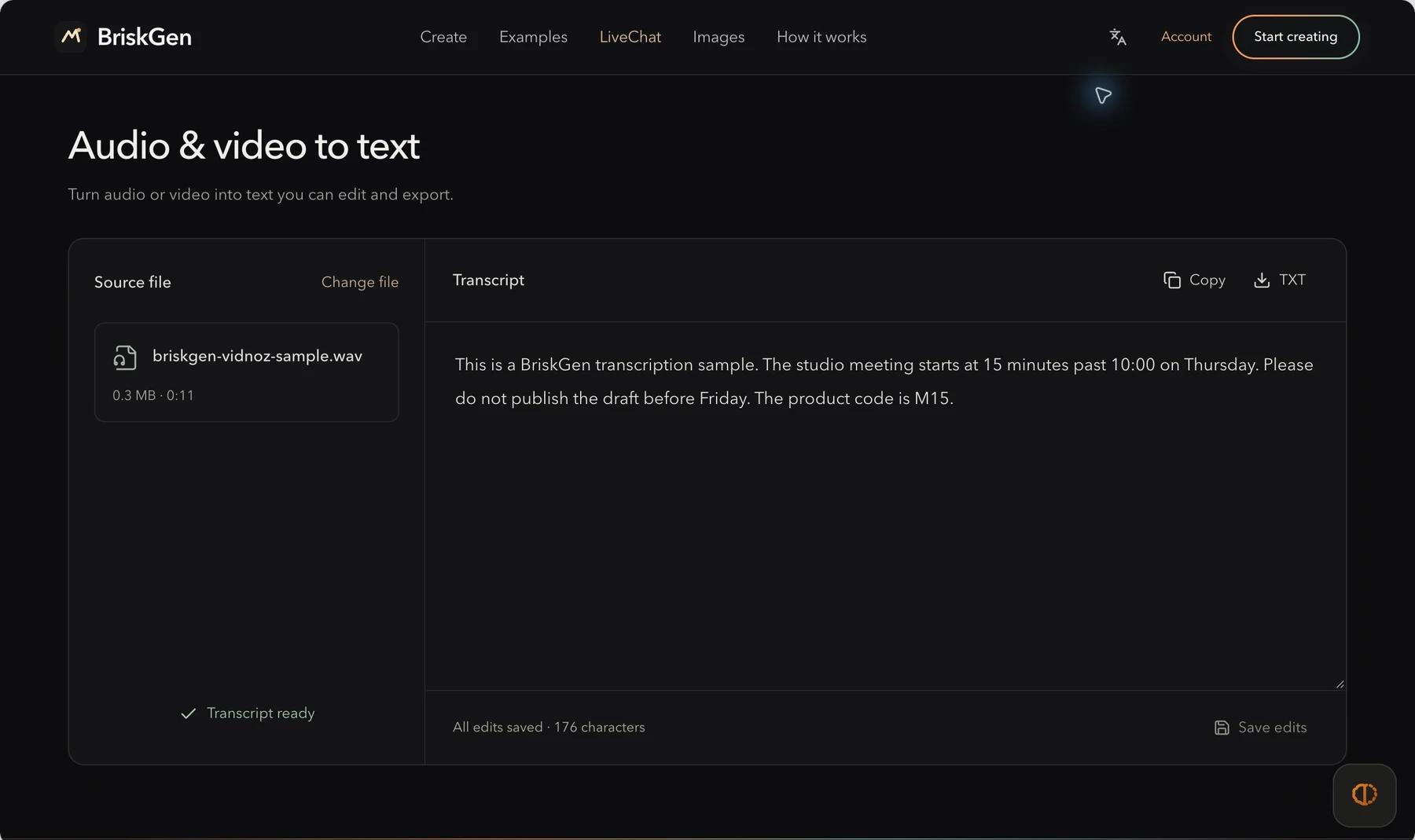
For a reading copy, you might normalize “15 minutes past 10:00” to “10:15” after checking the recording. The editing state below does that and adds paragraphs. Preserve the meaning and select Save edits before treating it as the saved version.
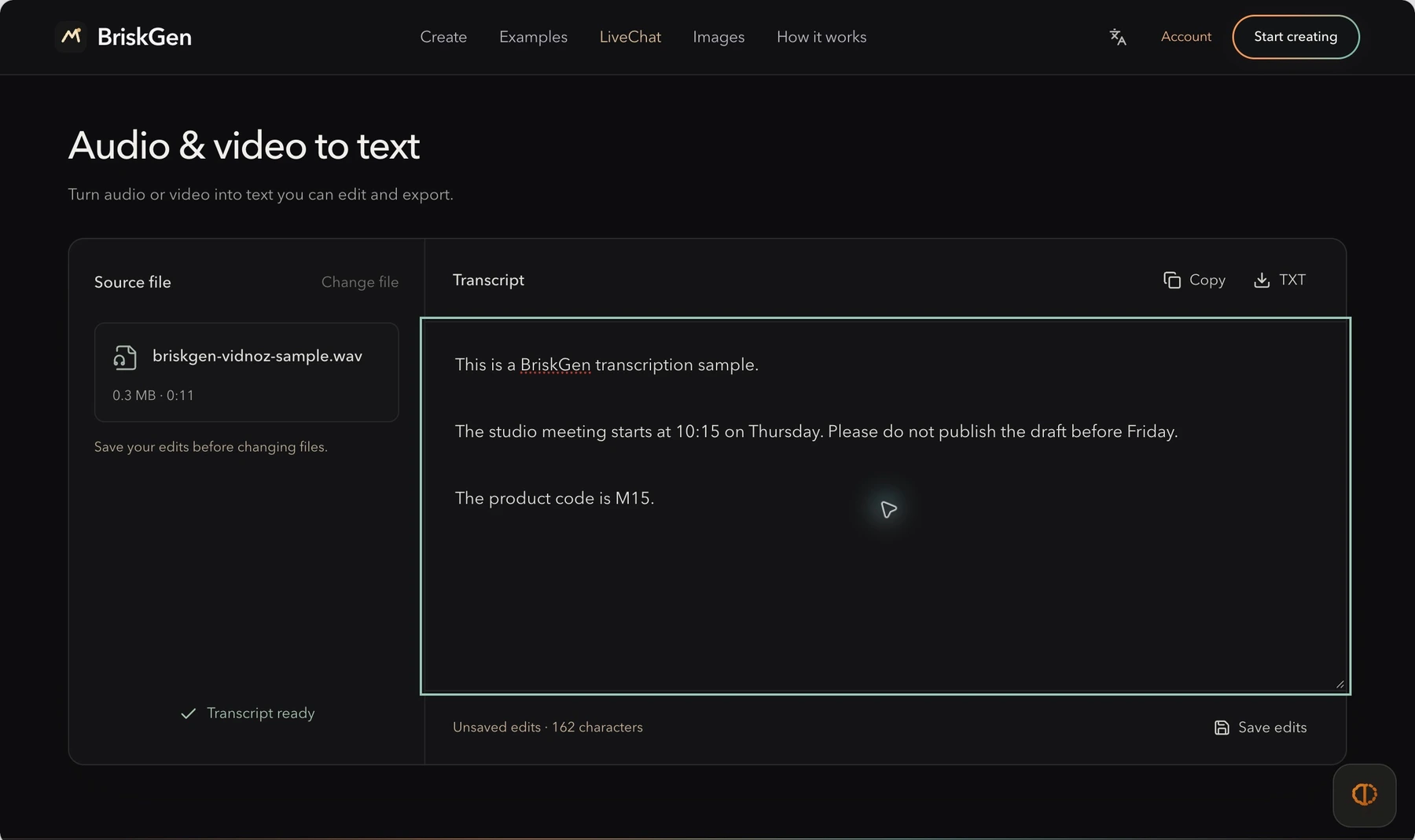
For your own recording, finish the same sequence: correct the draft, save, download, and open the TXT. Choose the subtitle route instead if the recipient needs time-coded captions.
Example: a product briefing with four easy-to-miss details
Consider this invented voice-note excerpt:
“The Aster M15 launches on 14 November. Send fifteen review units. Do not include the charging dock. The suggested price is ninety-nine dollars.”
For this fictional briefing, review the details in the order that could change someone’s next action:
- M15: compare the model identifier with the approved product sheet.
- Fourteen November: confirm the month and day against the recording, without silently substituting a date from your assumptions.
- Fifteen: replay the word in context; “fifty” changes the shipment.
- Do not include: check the negative instruction, which is easy to overlook in an otherwise fluent sentence.
If you are preparing meeting notes, keep a faithful transcript separately from the action list. The transcript records what was said; the action list might read “Prepare 15 review units without docks.” Label the edited version as notes rather than presenting it as a verbatim quotation.
For a subtitle draft, the same sentence needs another pass. A reader should see the negative instruction at the moment it is spoken, and a caption boundary should not make “Do not” disappear before “include the charging dock.” Check timing and meaning together.
Review in passes instead of polishing every line at once
First, compare the transcript with the whole recording for omissions. A missing sentence can be more consequential than a misspelled word. Mark unclear sections with a working note such as [unclear, 02:18] rather than guessing what would make the sentence sound better.
Next, search for names, model codes, amounts, dates, units, and words such as “not,” “before,” and “after.” Replay each relevant passage. If two people talk over one another, do not infer who gave an instruction from the wording alone. Attribute it only when the recording supports that attribution.
Finally, edit for the destination. Notes may need headings; quotations need faithful wording; subtitles need readable breaks and synchronization. Preserve a checked master so presentation edits do not overwrite your evidence.
For short subtitle handoffs, also compare the first caption, a caption after a cut, and the final caption. If the transcript was made from one version of the recording and your editor uses another, timing can be consistently wrong even when the words are correct.
If an upload or output does not work
| What you see | What to check next |
|---|---|
| The upload is rejected | Compare both duration and size with the public tool limits; verify the extension against the displayed list |
| The result is empty or unrelated | Play the uploaded file and confirm that the intended speech is actually audible |
| Names or model codes keep changing | Build a small correction list and check every occurrence against the audio |
| Subtitles drift after an edit | Confirm that the SRT and video come from the same cut; review any split-file offsets |
| The receiving app rejects the file | Inspect the actual downloaded format and test one file in that app before continuing |
Change one condition at a time. If a supported file still fails, keep its format, duration and file size ready for support; if only the receiving app fails, investigate the export format before transcribing again.
Is Vidnoz audio to text free?
The public converter describes itself as free. Vidnoz also has a separate Voice pricing page with credit-based audio-to-text usage and different allowances. Those pages do not establish one universal free quota or export entitlement across every entry point.
Check the allowance shown in the exact tool and account you are using before a long job. Do not buy an avatar-video subscription on the assumption that it supplies a particular transcription entitlement. For regular work, the meaningful cost is the allowance you receive plus the correction and handoff time required by your own recordings.
If you need a documented transcript editor with speaker reassignment and word realignment, see the ElevenLabs audio-to-text workflow. If the next step is placing words into a design, the Canva guide explains the difference between transcript text and captions.
Sources and verification
Vidnoz instructions and limits were checked against official pages on 24 October 2026; its public upload and output controls were inspected without running a transcription. The BriskGen WAV/TXT pair is our own short sample. No comparative accuracy or speed test was performed.
- Vidnoz Audio to Text: public upload controls, limits, output choices, and conversion sequence.
- Vidnoz Voice pricing: separate credit and entitlement context.
Cover: original AI-generated editorial scene illustrating the topic; product interface and test images in the article are documented separately.